WeCom (企业微信)
Once connected, the AI uses WeCom through a smart bot: it writes docs, sheets and smart sheets, reads mail, schedules events and meetings, creates to-dos and sends you messages. The overview is at WeCom / Feishu / DingTalk.
Steps
You need a WeCom account (a company or a team you set up yourself can both register) and a Vibe Seller admin account.
- Open Vibe Seller Settings → Integrations and, under WeCom / Feishu / DingTalk, click Connect on the WeCom row. The first time it downloads WeCom's official program (about 5 MB), usually in a few seconds.
-
A QR code appears. Scan it with the WeCom app (it is valid for 5 minutes):
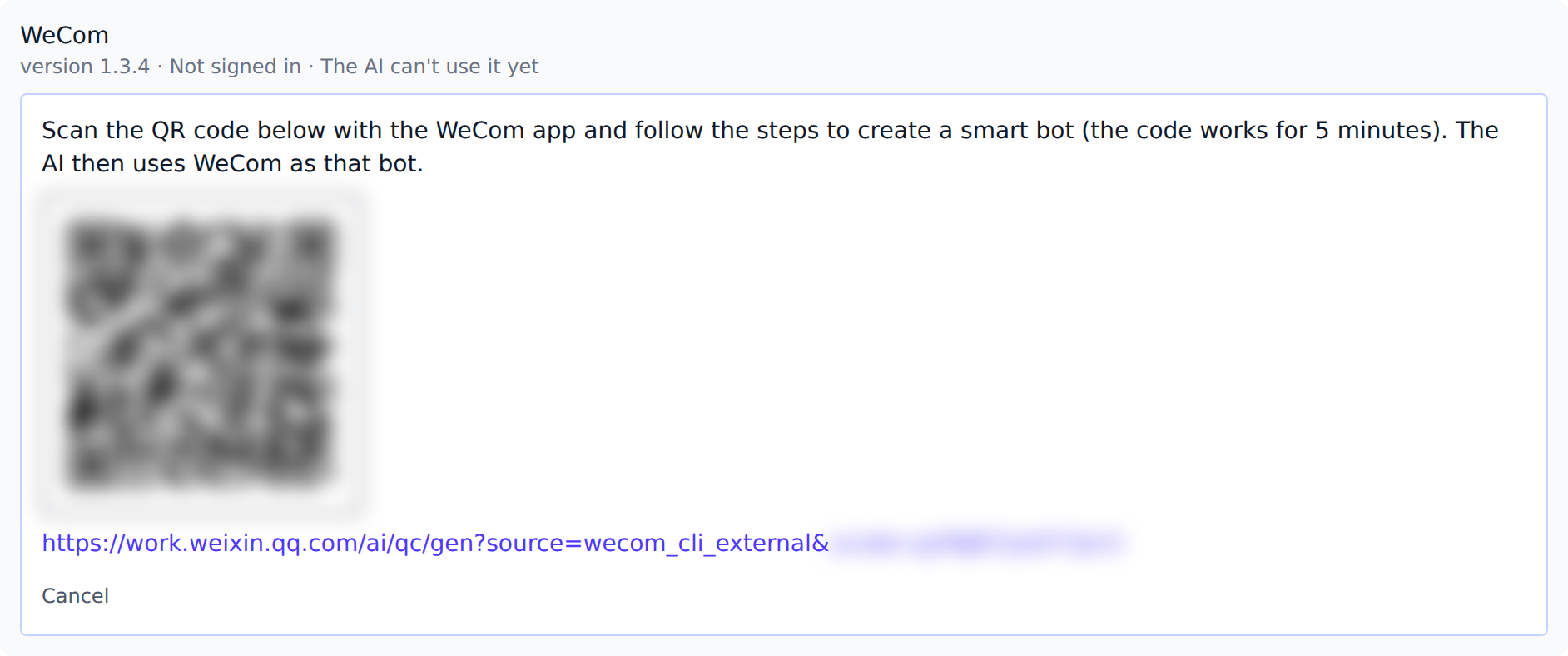
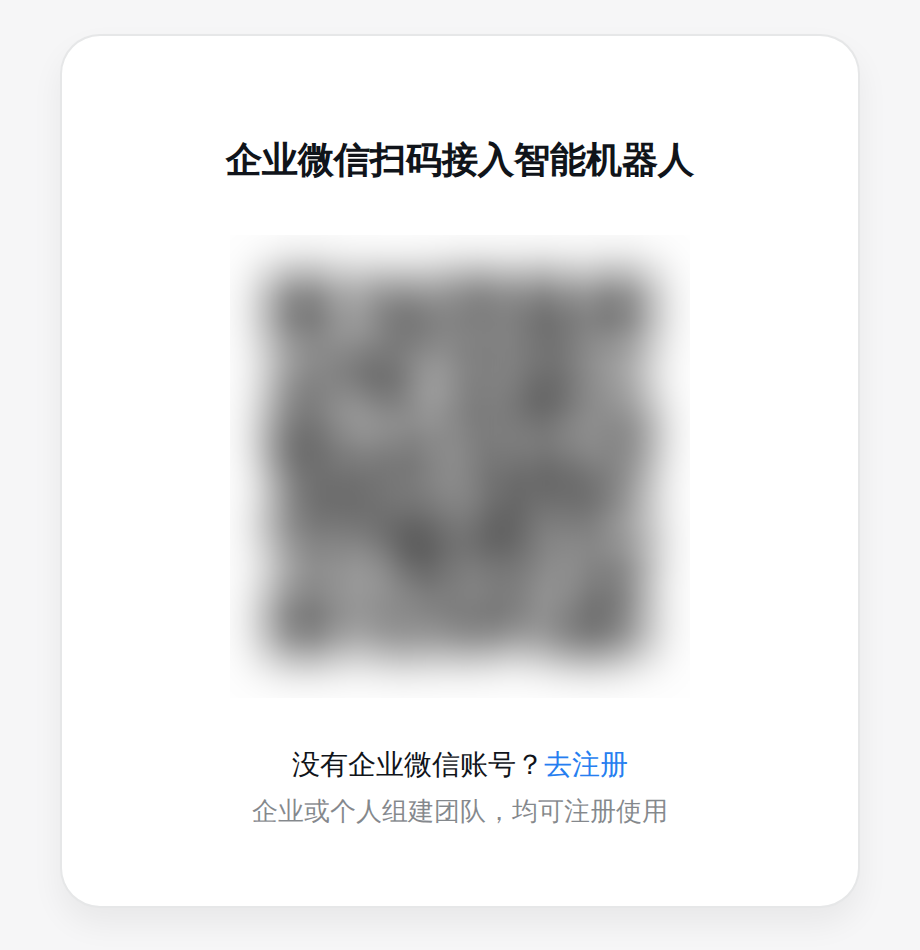
If scanning a computer screen is awkward, click the link under the QR code to open WeCom's scan page in a browser:
-
On your phone, follow the prompts to create a smart bot and confirm.
- Back in Settings, the WeCom row shows "Signed in. Finishing the setup…", then "The AI can use it" a few seconds later. Done.
Try it
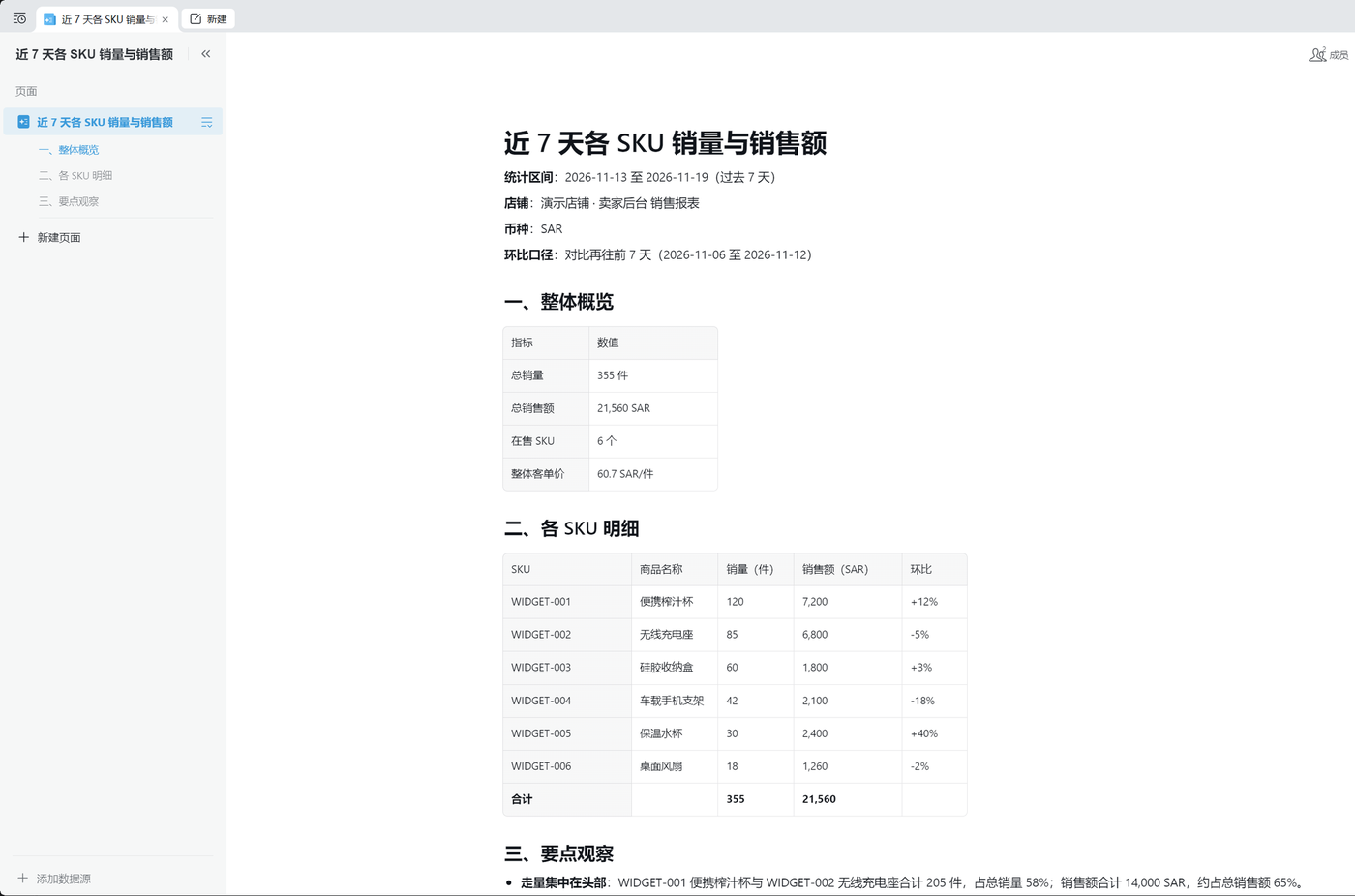
In any store, create a task such as "Check the store's units and revenue per SKU for the last 7 days, put them in a table in a new WeCom document, and send me the link on WeCom." When the AI is done, the link arrives in your WeCom; open it to see the document it made:
What the bot can do
Every action the AI takes is done by this bot, on behalf of the person who scanned — not as that person. Messages arrive as sent by the bot. As WeCom's official program itself states:
- Messages can go only to the person who scanned, and to single or group chats the bot has talked in recently. For the AI to post in a group, add the bot to the group and @-mention it once.
- Reading: data the scanner created or owns can be read, searched and downloaded by the bot. Every teammate's tasks can use that access, so scan with a dedicated work account.
- Changing: the scanner's docs, sheets, smart sheets and smart pages can be edited; calendars, meetings, to-dos, drive files, mail and everything else can only be changed where the bot created them.
FAQ
The QR code expired?
It is valid for 5 minutes. Click Connect on the WeCom row again, or Sign in again on a platform that is already enabled.
The AI can't message a colleague directly?
The bot can message only the person who scanned, and people who talked with it recently. For anyone else WeCom refuses, saying the chat is not one of the bot's recent chats and that the member has to talk to the bot first. Ask the colleague to send the bot one message in WeCom; the AI can message them after that.
The AI says it can't post in a group?
The bot can only post in groups it has talked in recently. Add the bot to the group, @-mention it once, then ask the AI again.
On Windows: "This computer can't run WeCom's official program"?
WeCom's official program needs the Microsoft VC++ runtime, which most computers already have. If yours doesn't, install the Microsoft Visual C++ Redistributable (x64), then click Connect again.