Check the mailbox every day and send what matters to the WeCom group
No more digging through the inbox first thing. Every day at 09:00 Vibe Seller reads the mailbox on its own, sorts the mail into "needs a reply", "supplier / platform notices" and "no action", writes one suggested next step per message, and posts the digest to your WeCom group. Messages that need a reply are drafted only — the draft stays in the task for you to read.
Setup takes about 10 minutes; after that it runs every day by itself.
What you need first
- A working AI profile (first time? Start with the Quickstart);
- A mailbox and its authorization code: 163 / QQ Mail need IMAP turned on and the 16-character code, Gmail needs an app password, Outlook / Hotmail can't be added today — steps in Email integration;
- A WeCom group and that group's bot Webhook URL (in the group: ··· (More) → Message Push → Add) — steps in WeCom bot.
If the mailbox belongs to one store (a store's customer-service address, say), decide that up front: link it to that store and create the schedule under that store too. A shared inbox (purchasing and operations both use it) stays unlinked, and the schedule runs as All Stores · Single (one task).
1. Add the group bot
Open Settings → Integrations → Chat bots and click Add Bot.
- Name: something you'll recognize later, e.g. "Ops group";
- Webhook URL: paste the whole address you copied from the group — the platform is detected from it and shown as a WeCom badge.
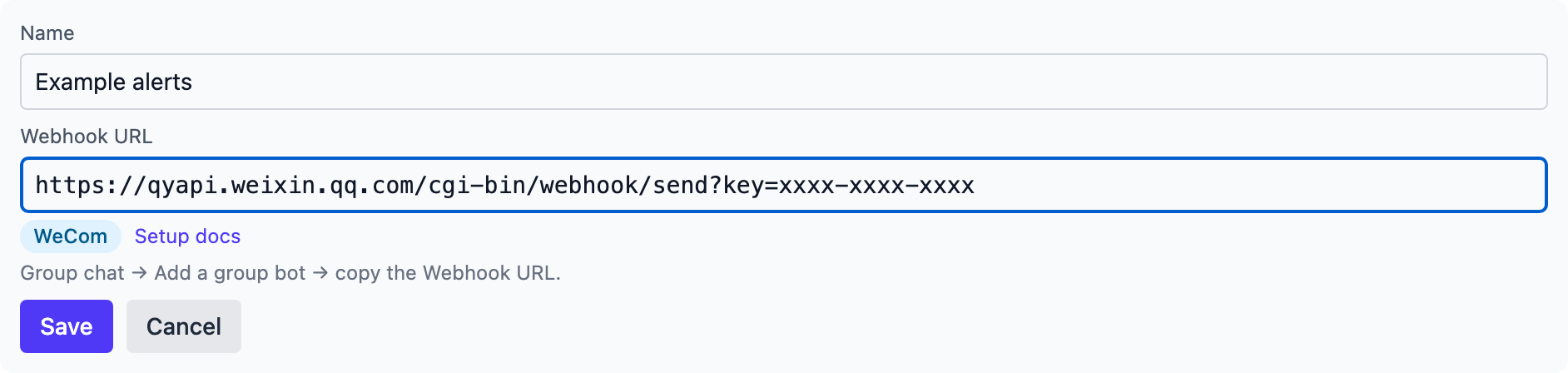
Click Save, then Test on that bot. The group receives
Vibe Seller: chat bot connection test ✅, which means the address works.
DingTalk and Feishu forms also show that platform's own security settings — DingTalk requires at least one of them, Feishu's are all optional; see Add the bot in Vibe Seller.
2. Add the mailbox
Open Settings → Email and click + Add Email.
- Email: the full address, e.g. ops@example.com. When the field loses focus, the IMAP / SMTP servers are auto-detected and filled in;
- Password/App Key: the authorization code — not your login password;
- Click Test Connection, and once it says "Connection successful", click Save.
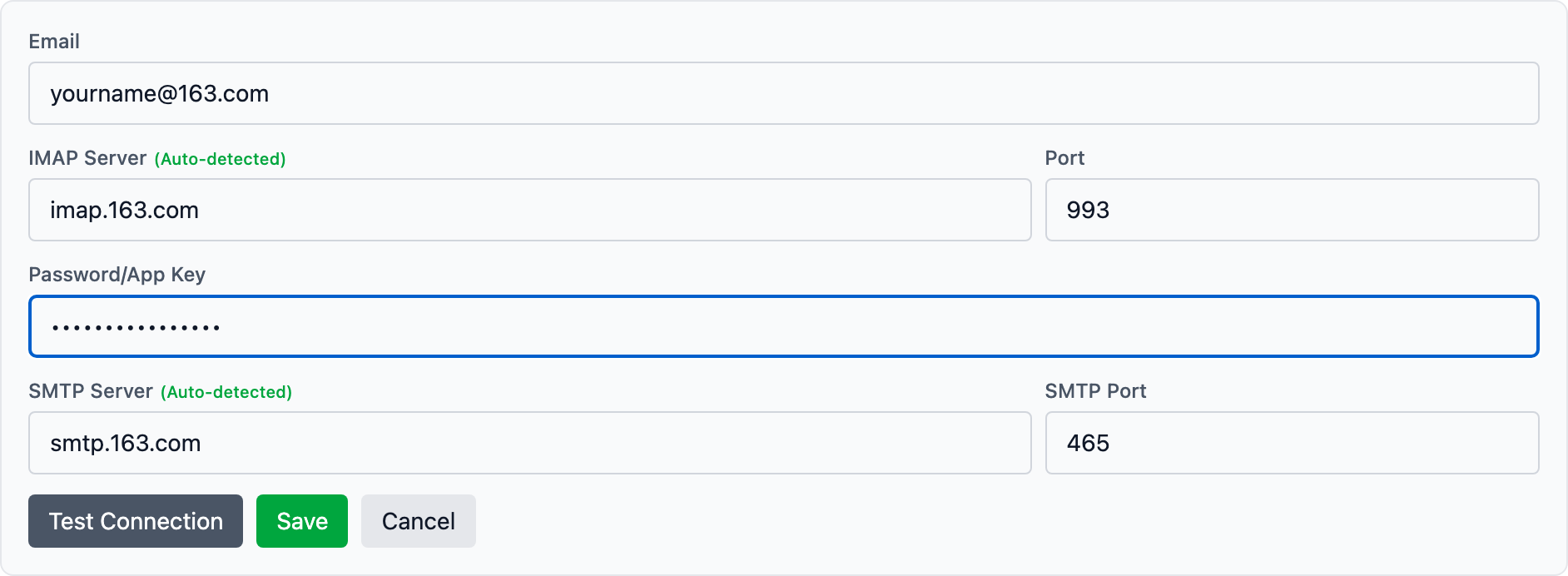
A store's own mailbox does one more thing at this step: after saving, click Link to Store on that mailbox card and pick the store. Only a linked mailbox is visible to the AI in that store's tasks.
3. Create the schedule
On the Tasks page in the sidebar, select All Stores on the left (a shared inbox isn't tied to a store), switch to the Scheduled sub-tab and click New Schedule.
Title: "Daily inbox digest"
Description (copy this block, and replace the group name with yours):
Review the last 24 hours of mail in the mailbox and sort it into "needs a reply", "supplier / platform notices" and "no action", with one suggested next step per message. Send that digest to the "Ops group" bot. For anything that needs a reply, draft it only - never send; leave the draft in the task for me to read.
Frequency: every 1 days; At time: 09:00; Timezone: pick the zone you work in — the schedule fires in that zone, whatever timezone the server is in.
Mode: choose Single (one task). A shared inbox belongs to no store, so one task reading the whole mailbox is enough; Fan out would create a task per store and read the same mail several times.
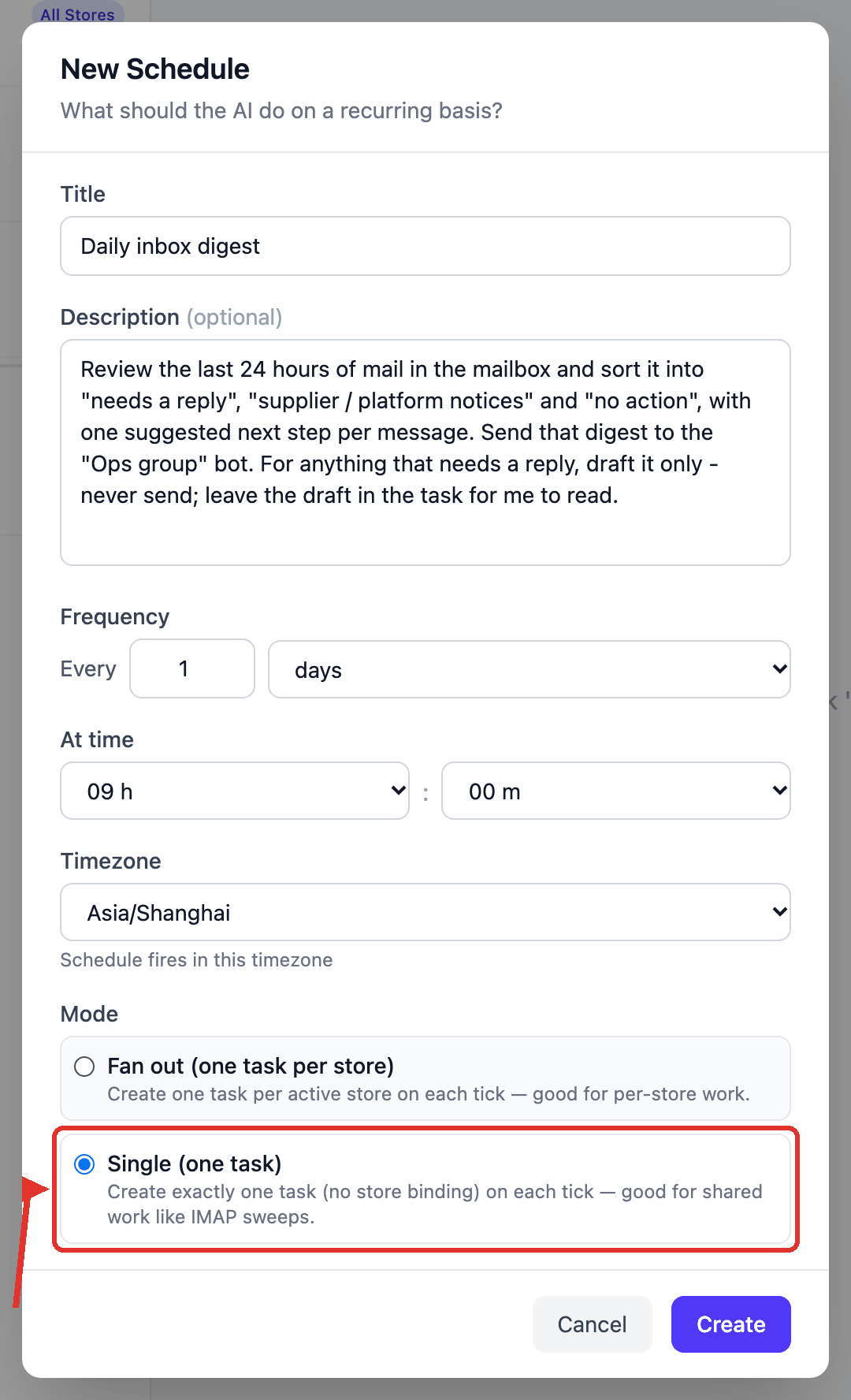
Click Create. The AI drafts an execution plan right away: the list shows Planning first, then Ready when the plan is written — you don't approve this step. From then on it runs that plan every day at 09:00, see The plan is authored once, at creation.
What you get after it runs
After 09:00 the next day, open that round's run on the Tasks page. The conversation shows which messages it read and which drafts it wrote, and then the digest, sorted into three buckets:
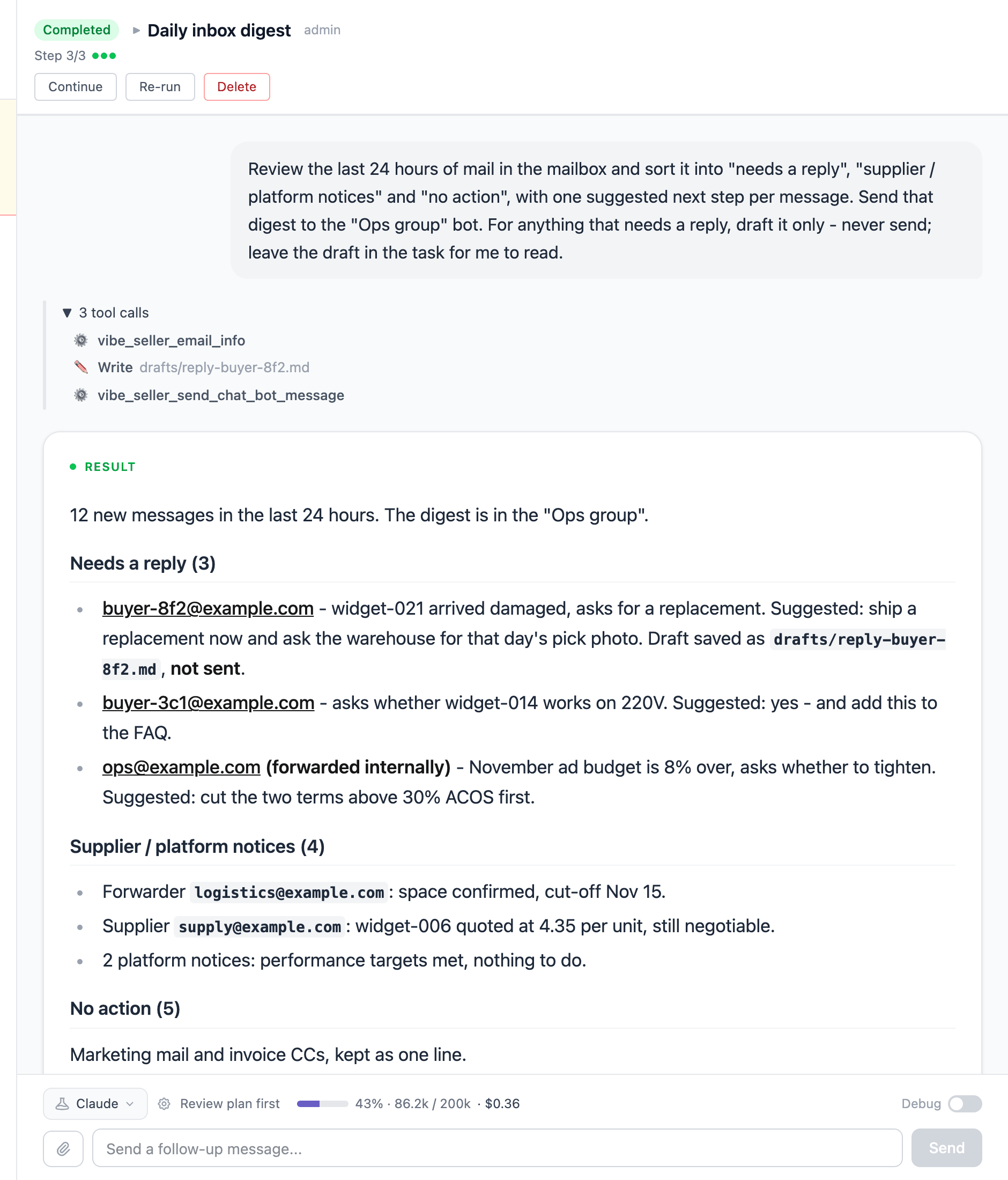
At the same moment the digest lands in the WeCom group. To look at one message closely, ask in that same task — show me the draft for the second one, or make the suggestion for the buyer email more specific. A follow-up continues the same task, so the mail it already read is still there.
Questions this example gets
Will the AI send mail on my behalf? By default it can: the "Email sending permission" switch on each mailbox card is on. The description above already tells it to draft and not send. To close the door completely, turn that switch off under Settings → Email: afterwards the AI can read and draft, and you press send. Only a person can change the switch — the AI cannot, see Turn off the email sending permission.
It says it didn't see a message that just arrived? Mail syncs to this machine every 5 minutes. Add sync the mailbox first, then check to the description, or wait for the next run. Also confirm the mailbox is linked to the store the task runs under — an unlinked mailbox is invisible to that store's tasks.
Can it message the group only when something urgent comes in? Yes — put the bar in the description, e.g. post to the group only for buyer complaints and platform notices; keep everything else in the task result. The AI applies the standard you wrote, and explains its reasoning when a message is a judgement call, so for the first week read the full daily digest before tightening the rule.