Connect Vibe Seller to Claude
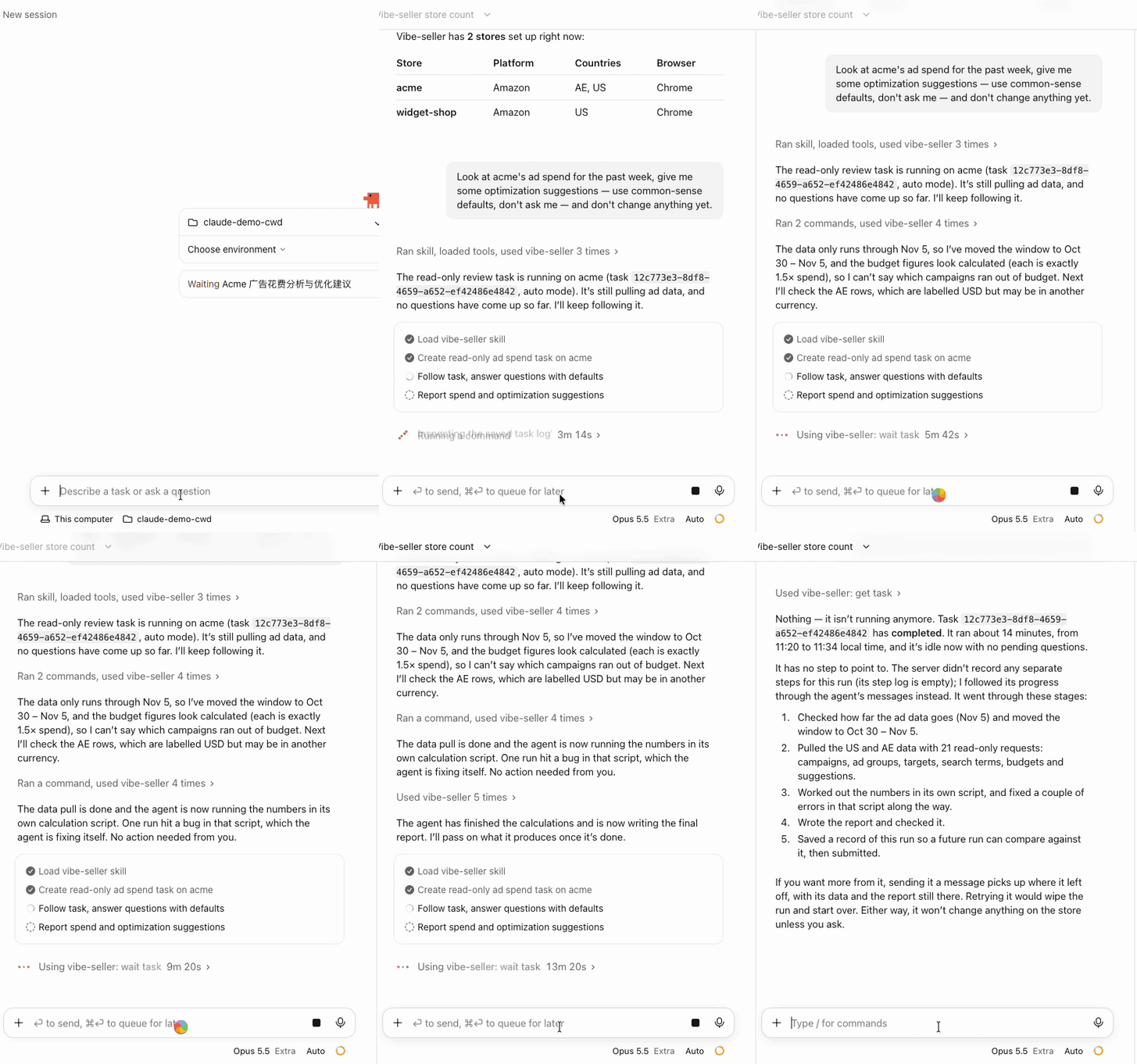
Once it's connected, you can ask Claude to create Vibe Seller tasks, follow their progress and answer their questions.
Two things to get ready first:
- An API key — see First: create an API key. Right after you create it, the dialog shows your server address and a ready-made Claude command;
- Claude itself, installed from claude.com/download.
Connect
The Code tab of the Claude desktop app is Claude Code, and both read the same config. Run the command from the dialog's Command line / config file tab in a terminal — copy it as one line — and the app and the CLI both work:
# Connects to this machine; if Vibe Seller runs elsewhere, use its address instead of localhost
claude mcp add --scope user --transport http vibe-seller http://localhost:7777/api/mcp --header "Authorization: Bearer vst_…"
An optional vibe-seller plugin makes the agent use the tools better — it
ships instructions on when to plan first, how to follow a task, and to report
only results the task really produced
(how to install it).
Check it works
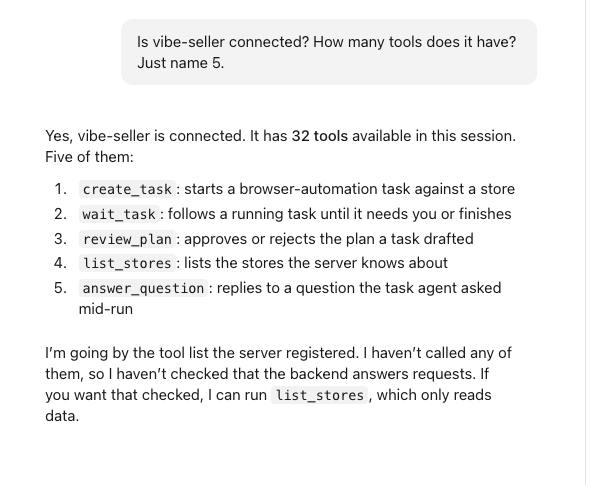
Open a new Code session and ask how many stores are in vibe-seller right
now?. If it names your stores, you're connected. From a terminal,
claude mcp list should show vibe-seller with ✓ Connected.
Change or remove
To change the address or the key, run claude mcp remove vibe-seller in a
terminal, then run the claude mcp add command above again with the new
config.
Next
See What you can ask for what to say once you're connected, and Examples for full walkthroughs.