TickTick / Dida365
Connect TickTick (or its Chinese sibling Dida365) to Vibe Seller and the AI can create tasks in your lists, update progress and look up projects while it works — turning inspection findings into to-dos, for example, or scheduling the follow-ups from a weekly review.
The connection uses TickTick's official Open API (OAuth2). All you need is to register an app on its developer portal and copy back a Client ID and Client Secret — think of it as issuing Vibe Seller a key card. Five minutes, no code.
Where each integration is configured and how they divide up: see the Integrations overview.
What you need
- A Dida365 (China) or TickTick (international) account;
- Access to sign in to it once during the authorization popup.
The two services have separate accounts: register the app on the developer portal of the version you actually use.
Step 1: Register an app on the developer portal
- Open the portal and sign in:
- Dida365 (China): developer.dida365.com;
- TickTick (international): developer.ticktick.com.
- Click New App. Any Name works (e.g.
vibe-seller); leave App Service URL and Description empty, then click Add.
Step 2: Set the redirect URI
- Back in the app list, click Edit next to the app you just made;
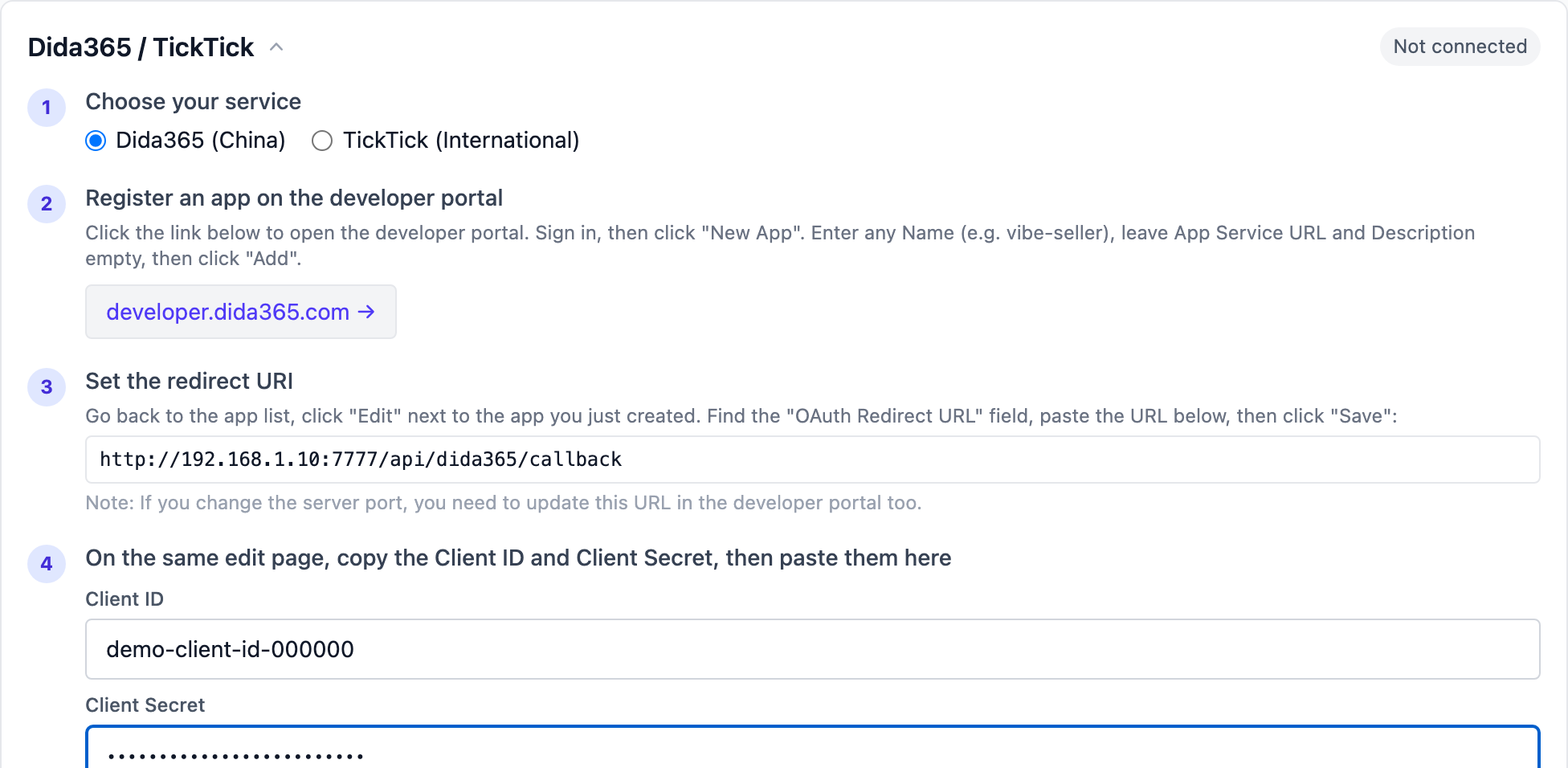
- Find the OAuth Redirect URL field and paste the address shown
in Vibe Seller (the code box in the next screenshot). It is
whatever address you use to reach Vibe Seller plus
/api/dida365/callback— e.g.http://localhost:7777/api/dida365/callback; just copy what the page shows; - Click Save.
Changed the port?
The port in the redirect address must match the one you actually use to reach Vibe Seller. If you change it later, update this field on the developer portal too.
Step 3: Copy the credentials and connect
- On the same Edit page, copy the Client ID and Client Secret;
- Open Settings → Integrations → Dida365 / TickTick in Vibe Seller (that's the card's label; the page itself is titled "TickTick / Dida365"), pick your service (China / International) and paste both values into the step-4 fields;
- Click Authorize — a TickTick authorization popup opens; sign in and approve. The popup closes by itself and the card's status changes to "Connected".
Pop-up blocked?
The authorization page opens as a pop-up. If your browser blocks it, click the pop-up blocker icon in the address bar, choose "Always allow pop-ups from this site", then click Authorize again.
Step 4 (optional): Pick a default project
Once connected you can choose a default project — automatically created tasks (from event sync, for example) land there. Leave it empty and the AI can reach every project. Click Save to keep the choice.
Verify
- The card's status pill in Settings reads Connected;
- Try a task: Add a TickTick task: reconcile last month's bills by Friday;
- Open the TickTick app or web site — if the task is there, you are done.
What the AI can do with it
- Create tasks: turn your spoken to-dos into entries in the right list, with due dates and priorities;
- Read tasks: summarise open items in a list, check progress, report what changed;
- Update tasks: tick things off, move dates, add notes.
Task data only travels between your deployment and TickTick's official API; the credentials stay encrypted on your machine.
FAQ
"Authorize" fails with a redirect_uri mismatch?
The OAuth Redirect URL on the developer portal doesn't match what Vibe Seller shows. Re-check the Edit page: scheme (http/https), host (localhost or your domain), port and path must be identical. Save and click Authorize again.
Remote access warns that a bare hostname is rejected?
The TickTick developer portal only accepts localhost or a full
domain (e.g. host.example.com) — bare hostnames like
http://myserver:7777 are refused. Fix: open a browser on the server
machine itself, finish the authorization once at
http://localhost:7777, then keep using the remote page; or reach
the page through a full domain (e.g. a Tailscale *.ts.net name).
It stopped working after a while?
Check the card in Settings. If it says "Not connected", click Authorize once more — your Client ID / Secret are still stored, so there is nothing to re-enter.
Can I connect China and international at once?
Only one service at a time (they share one connection slot). To switch, Disconnect first and connect the other version.
How do I disconnect?
Click Disconnect on the card in Settings and confirm. The AI loses access immediately. The app registered on the developer portal can stay — you can authorize again later.