Vibe Seller
AI automation framework for cross-border sellers (supports Amazon, Noon, Mercado Libre, Qianniu and more; Ziniao, Chrome and other browsers). Freely connect any LLM.
Runs on macOS, Linux, or Windows (native installer). Local-first — code on your machine, data on your disk. Works with Claude, DeepSeek, GLM, Qwen, Kimi, MiniMax — any Anthropic-compatible provider.


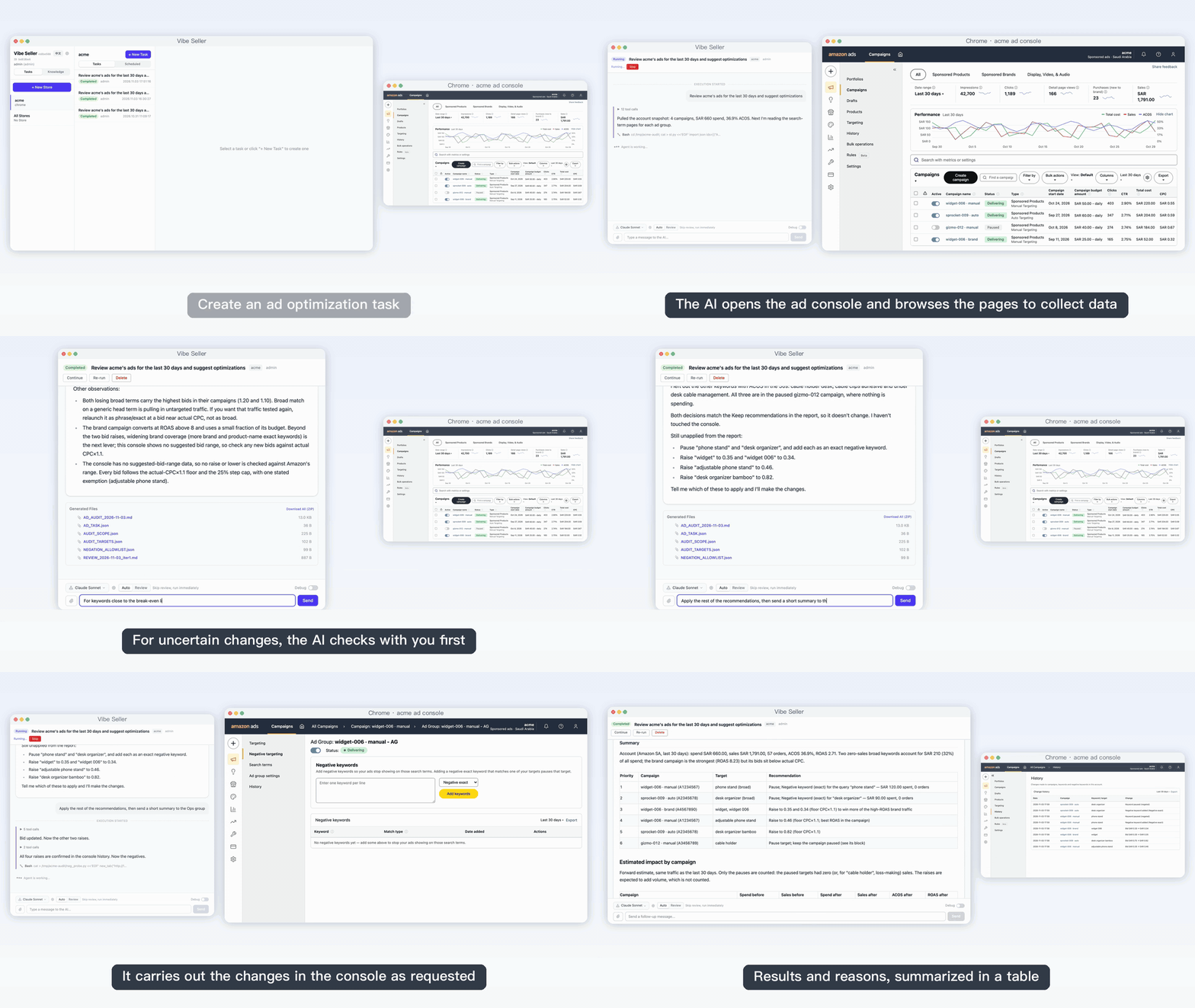
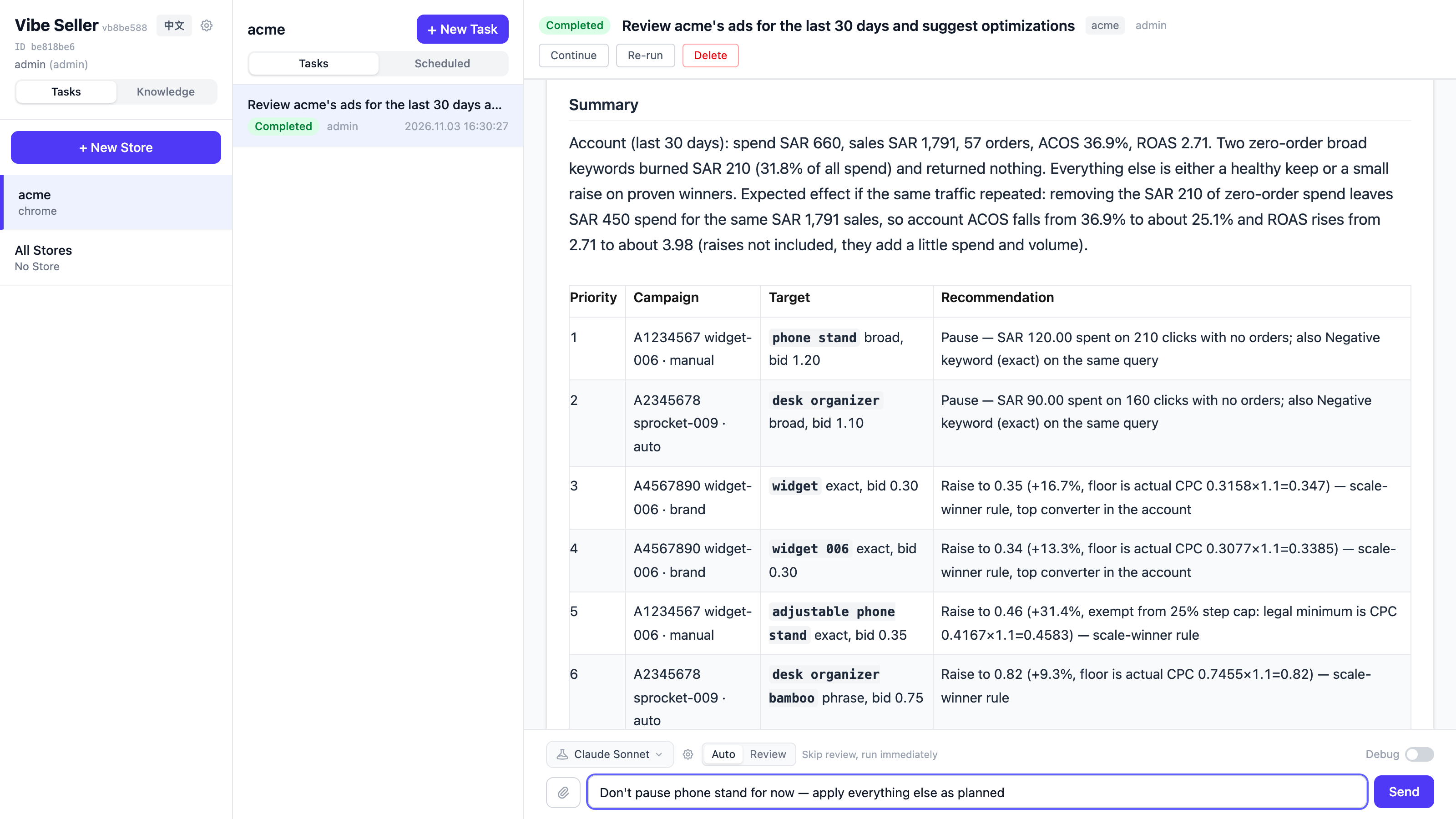
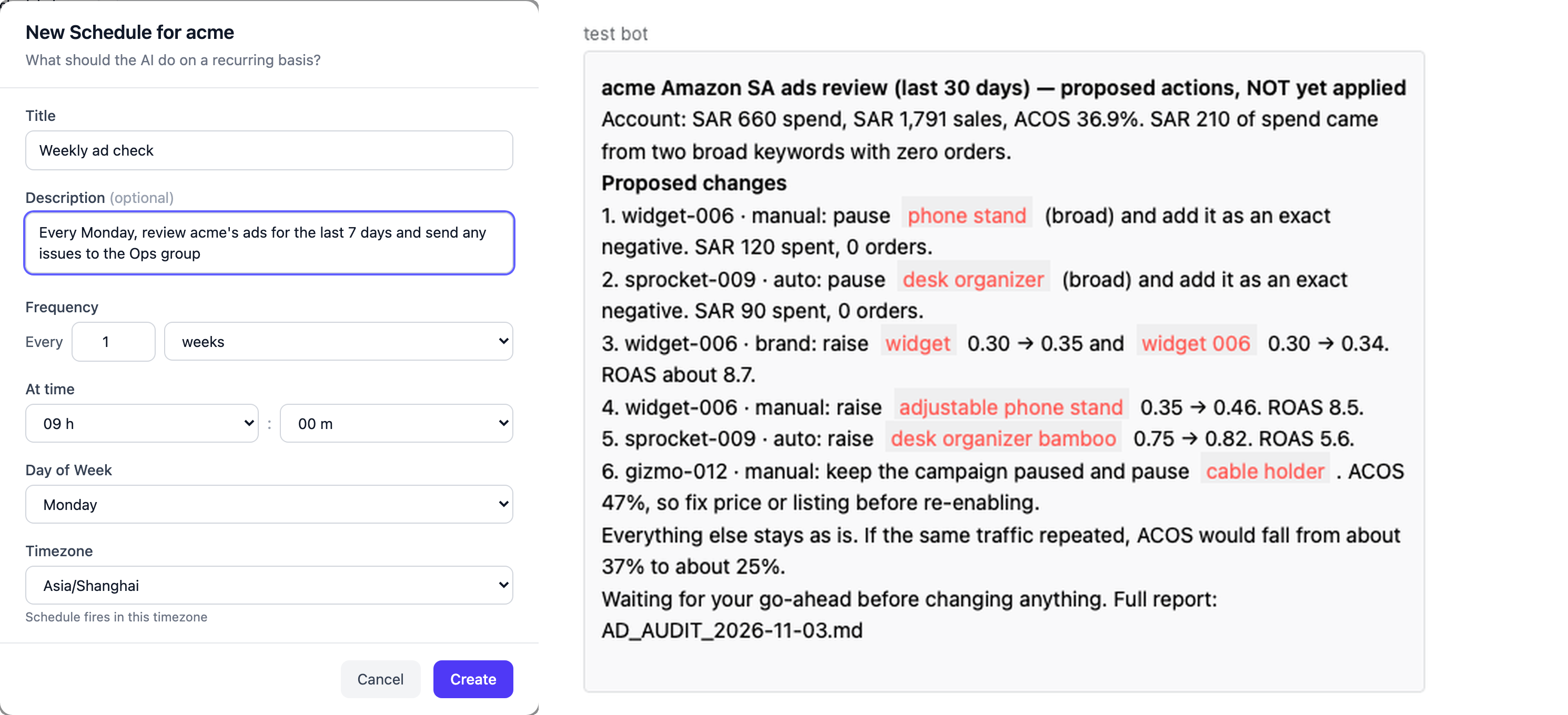
What is Vibe Seller?
A local-first browser-automation framework. AI agents drive your real browser — Ziniao for fingerprint isolation, or plain Chrome — through CDP (Chrome's low-level remote-control protocol), the same way you'd click through pages yourself. Ad tuning, listing launches, inventory checks, invoicing, returns, warehouse setup, logistics lookup — whatever you can do in a browser, the agent can do too.
Each store gets its own agent — think of it as hiring a different ops person for each store. The Store A agent only sees Store A's profile, has its own memory and workspace, can't touch the other stores' agents.
flowchart LR
    U1[You] -.LAN.-> S
    U2[Teammates] -.LAN.-> S
    subgraph OfficeHost["Office host — Mac or Windows (always on)"]
        S[Vibe Seller server<br/>web UI on :7777]
        S --> A1[Agent for Store A]
        S --> A2[Agent for Store B]
        S --> A3[Agent for Store C]
        A1 -->|CDP| Z1[Ziniao profile A]
        A2 -->|CDP| Z2[Ziniao profile B]
        A3 -->|CDP| Z3[plain Chrome]
    end
Either deployment works:
- One always-on machine (Mac, Linux, or Windows) hosts the server
- Or just use your own computer
You and your team open the web UI from any device on the same LAN.
Why Vibe Seller?
Compared to existing automation tools, Vibe Seller is built around what cross-border sellers actually need and what today's AI models can actually do well: AI-driven by design, with built-in Skills, per-store isolation, and fully local deployment. Browser control runs on browser-use instead of blind screenshot-clicking — faster, and far cheaper in tokens, than an agent that has to feel out every page from scratch.
- Batteries-included, no hand-holding. Amazon (every marketplace), Noon, and more ship with built-in Skills for the jobs sellers actually do — report / statement export, listing creation & updates, ad tuning. Create a task and the system opens the browser (Ziniao or Chrome) and the agent operates it directly — usually right on the first try, no step-by-step guidance needed.
- Native Ziniao control. CDP, not Playwright on vanilla Chrome, not UI-coordinate clicks. Lower risk-control risk, more stable.
- Multi-browser by design. Plain Chrome is a first-class backend alongside Ziniao — pick per store.
- Multi-LLM by design. Built on top of the Claude Code CLI, so any Anthropic-compatible provider works — Claude, DeepSeek, Kimi, MiniMax, GLM, Qwen. Switch in Settings, no code changes. Your key, your bill.
- No SaaS lock-in. Code on your machine, data on your disk, no account required.
- Auditable. Every step, every prompt, every screenshot is logged and replayable.
- Multi-store from day one. Each store keeps its own platform, data, SOPs, accumulated knowledge. Store A on Amazon US with its own listing strategy, Store B on Noon EG with totally different SOPs, Store C on Shopify DTC — they coexist without cross-talk.
Install
Prerequisites
- One LLM API key: Claude / DeepSeek / Kimi / MiniMax / GLM / Qwen
- A browser engine — Chrome or Ziniao
Quick start — pick your OS
🪟 Windows — native installer (recommended)
No WSL, no Python setup. Download VibeSeller-Setup.exe from the latest release and run it.
Requires Windows 10 version 1809 / Windows Server 2019 or later (64-bit). The bundled Claude Code cannot start on older systems (e.g. Server 2016), so the installer refuses to install there.
Or, in PowerShell:
irm https://raw.githubusercontent.com/zpoint/vibe-seller/main/installer/windows/install.ps1 | iex
🍎 macOS / 🐧 Linux
curl -sSL https://raw.githubusercontent.com/zpoint/vibe-seller/main/install.sh | bash
vibe-seller start
Open http://localhost:7777. Upgrade: vibe-seller upgrade (also upgrades the Claude Code CLI it runs). Uninstall: uv tool uninstall vibe-seller.
Nightly builds (published only when main has new commits; may be unstable): curl -sSL https://raw.githubusercontent.com/zpoint/vibe-seller/main/install.sh | bash -s -- --nightly. On Windows, set $env:VIBE_SELLER_CHANNEL='nightly' before the PowerShell one-liner, or download the installer from the nightly release. A nightly install is offered newer nightlies or stable releases; a stable install is never offered a nightly. Back to stable: vibe-seller upgrade --stable.
Prerequisites (auto-handled by install.sh): Python 3.11+ via uv, Node.js 22+.
🪟 Windows via WSL2 (advanced)
Prefer the native installer above. The WSL2 path runs the server inside Ubuntu/WSL with the browser on the Windows host — it needs mirrored networking (Windows 11+). Full setup lives in the developer guide.
# inside WSL2 Ubuntu
curl -sSL https://raw.githubusercontent.com/zpoint/vibe-seller/main/install.sh | bash
vibe-seller start
From source (for contributors)
git clone https://github.com/zpoint/vibe-seller
cd vibe-seller
./install.sh --dev   # system deps + venv + frontend build + Playwright
./start.sh           # serves :7777
If install fails, paste the repo URL https://github.com/zpoint/vibe-seller into any coding agent (Claude Code, Codex, opencode, Cursor) and tell it "read the README and install this." The README is written so any agent can follow it; most environment issues take one or two commands to fix.
First run
🪟 Windows — first run (4 steps)
For anyone who just ran the native installer.
1. Install
Run VibeSeller-Setup.exe
(or the PowerShell one-liner from Install). It starts
the server for you — check Open Vibe Seller now at the end of
the wizard, or open http://localhost:7777 yourself.
2. Add your LLM key
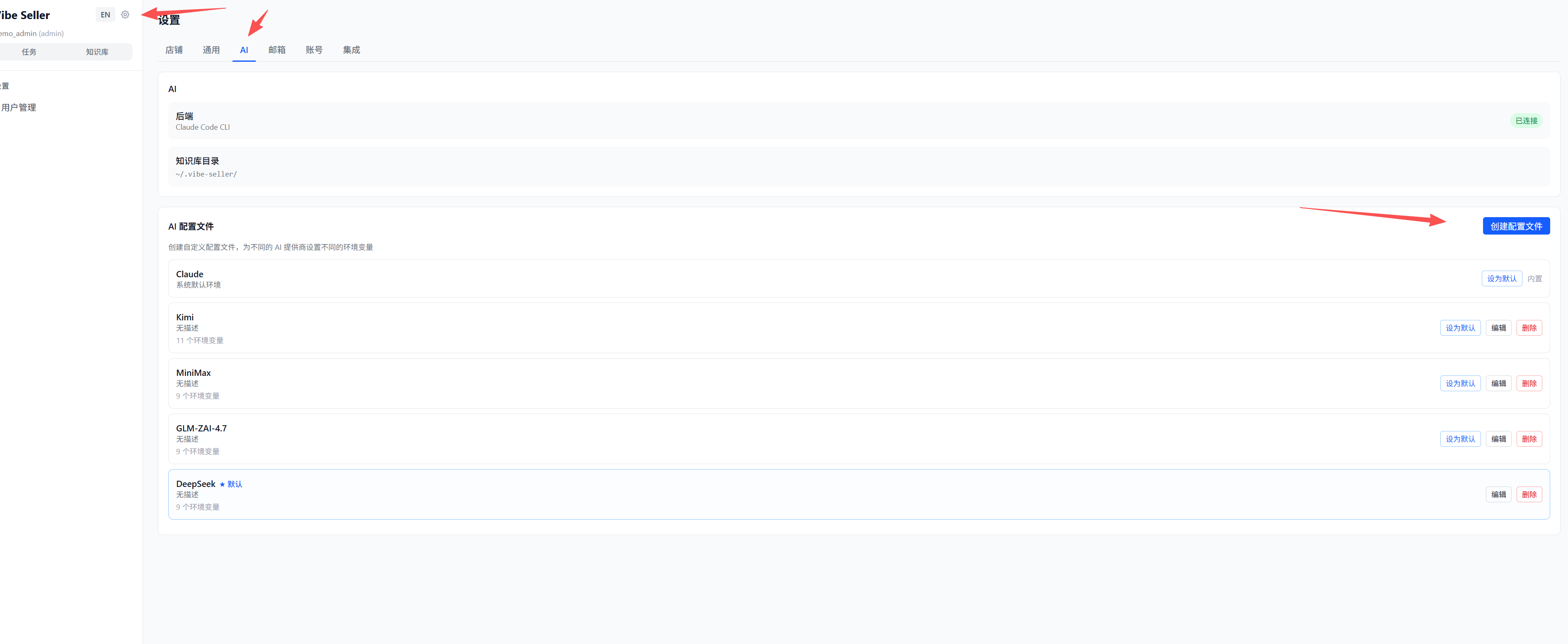
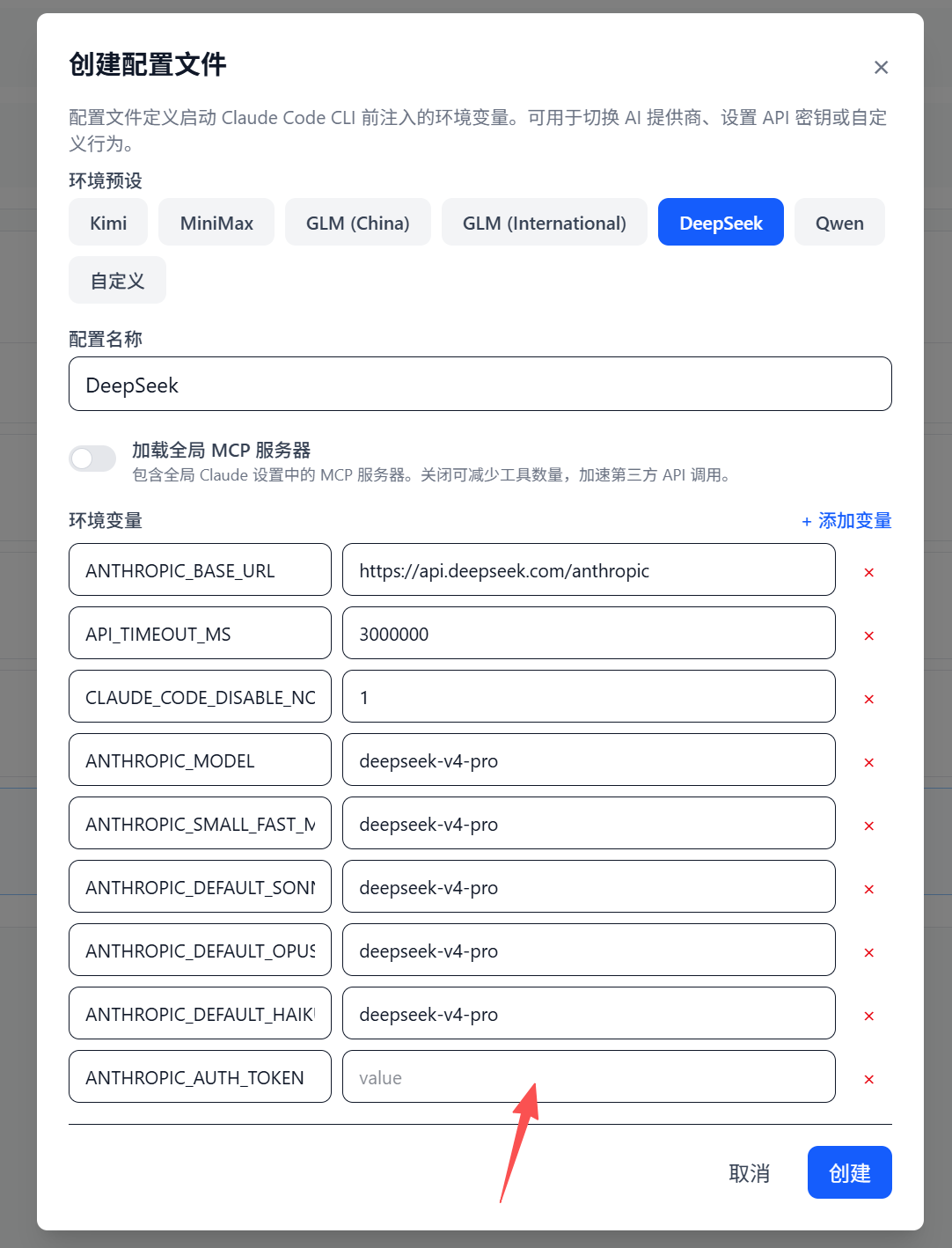
Settings → AI Agent → pick a provider (DeepSeek bills per token,
Claude has the highest ceiling, Kimi / MiniMax / GLM / Qwen all
work), paste your API key, save. Keys are encrypted at rest.
No key yet? DeepSeek is the path of least resistance — sign up, top up $2–3, pay-as-you-go per token (cost per task scales with task size). The other providers usually sell prepaid monthly token packs; pick a plan that fits your usage.
Already signed in to Anthropic via Claude Code on this machine? Vibe Seller reuses that session — skip this step.
3. Connect your stores
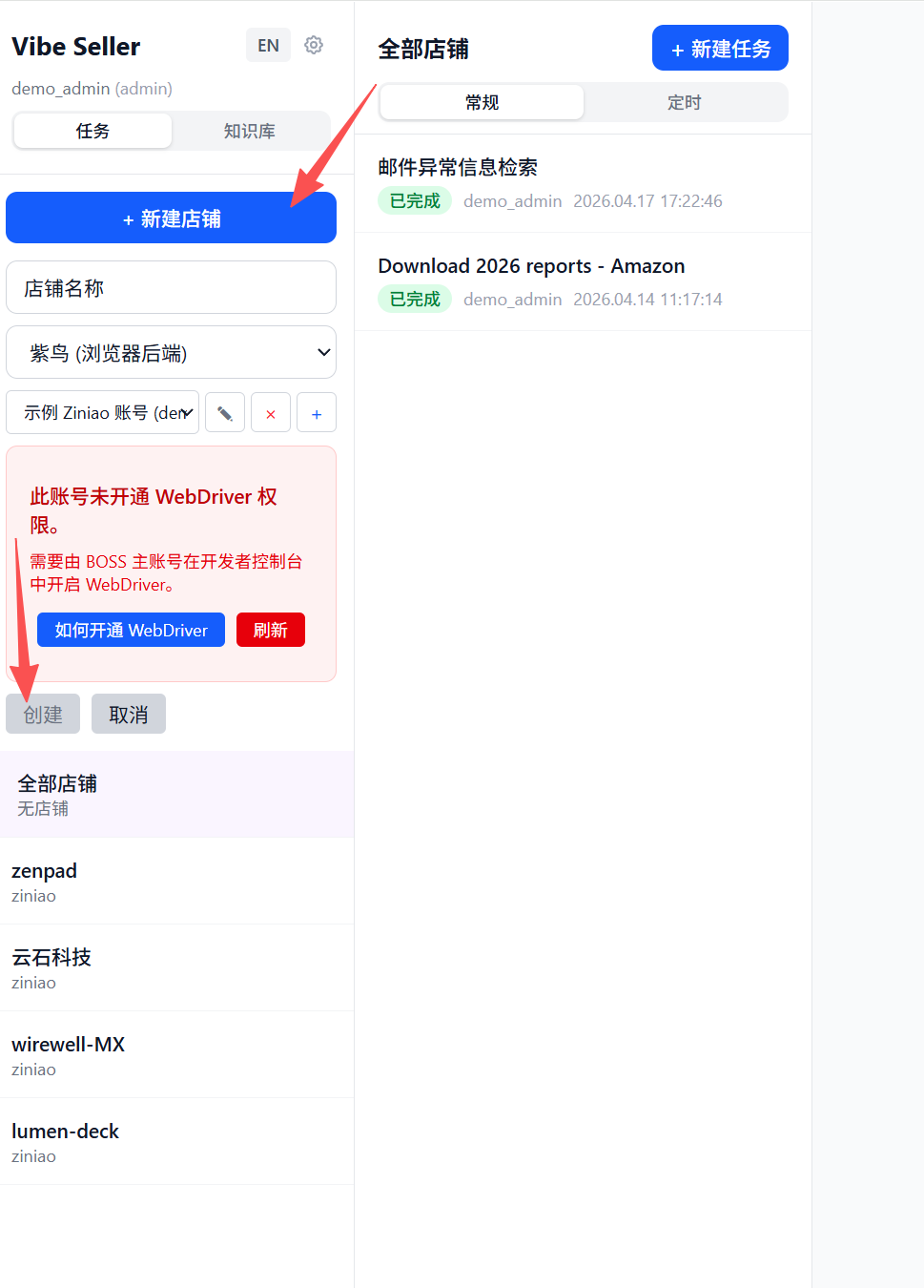
Settings → Stores → Add Ziniao account, fill in the account, pick
the right Ziniao profile for each store, save. Skip the Ziniao bit
and pick plain Chrome instead if you prefer.
4. Create your first task
Home page → New task → pick a store → write one sentence:
- "Check ads and pause any keyword with ACOS over 30%."
- "Export the past 7 days of sales reports."
- "Review inventory and estimate next month's restock SKUs."
The agent plans the steps, drives the browser, and writes you a report. Auto mode is the default — just run it. The toggle in the task footer can flip to Plan mode if you want to review the plan before execution.
Want email / group chat bots (WeCom / DingTalk / Feishu / Slack) / TickTick / Google Workspace hooked up too?
Settings → Integrations, any time after install — optional, and doesn't block your first task.
🍎 macOS / 🐧 Linux — first run (8 steps)
For anyone who hasn't used a terminal before. Eight steps:
1. Open a terminal
⌘ + Space, type "Terminal", hit return (Mac). On Linux, open your usual terminal app.
A black window appears with a blinking cursor.
2. Install
Copy this entire line, paste into the terminal, hit return:
curl -sSL https://raw.githubusercontent.com/zpoint/vibe-seller/main/install.sh | bash
Takes a few minutes (downloads the Python toolchain, installs
Vibe Seller, fetches Chromium). When the output ends with
Vibe Seller installed! you're set.
Stuck or hitting an error? Drop the repo URL https://github.com/zpoint/vibe-seller into any coding agent (Claude Code, Codex, opencode, Cursor) and say "read the README and install this." The agent will work through it for you.
3. Start the server
vibe-seller start
The server daemonizes — the CLI prints the PID and log path and
exits. You can close the terminal; the server keeps running. To
stop it later: vibe-seller stop.
4. Open the web UI
In your browser:
http://localhost:7777
When the Vibe Seller home page loads, you're done (no login by default).
5. Add your LLM key
Settings → AI Agent → pick a provider (DeepSeek bills per token,
Claude has the highest ceiling, Kimi / MiniMax / GLM / Qwen all
work), paste your API key, save. Keys are encrypted at rest.
No key yet? DeepSeek is the path of least resistance — sign up, top up $2–3, pay-as-you-go per token (cost per task scales with task size). The other providers usually sell prepaid monthly token packs; pick a plan that fits your usage.
Already signed in to Anthropic via Claude Code on this machine? Vibe Seller reuses that session — skip this step.
Using cc-switch or a similar Claude-account-switcher tool? Pick the default here.
Those tools manage your AI provider by editing
~/.claude/settings.jsondirectly, which conflicts with Vibe Seller's own AI picker. Just pick the default here and let cc-switch keep managing which AI you use.If you'd rather Vibe Seller manage it instead: quit cc-switch, then copy-paste this line into a terminal and hit return — it edits your global Claude Code config (
~/.claude/settings.json) to remove theANTHROPIC_*environment variables cc-switch wrote there:python3 -c "import json,pathlib;p=pathlib.Path.home()/'.claude'/'settings.json';d=json.loads(p.read_text());env=d.get('env') or {};[env.pop(k,None) for k in list(env) if k.startswith('ANTHROPIC_')];d['env']=env;p.write_text(json.dumps(d,indent=2))"
6. Connect your stores
Settings → Stores → Add Ziniao account, fill in the account, pick
the right Ziniao profile for each store, save. Skip the Ziniao bit
and pick plain Chrome instead if you prefer.
7. (Optional) Wire up email / chat bots
Want the agent to do daily email triage and push critical items to a
group chat? Settings → Integrations:
- Email: enter the mailbox address for each store; the IMAP server fields auto-populate (gmail, outlook, self-hosted all supported), so all you fill in is the secret (an app password usually). Not sure how to generate one? Ask any AI with the name of your email provider. Agent scans daily afterwards.
- Chat bots (企业微信 WeCom / 钉钉 DingTalk / 飞书 Feishu / Slack): set up a group bot / custom robot / incoming webhook in the platform, paste the webhook URL — the platform is detected automatically (optional signing secret for DingTalk 加签 / Feishu 签名校验). High-priority anomalies post automatically.
- TickTick / Google Workspace: connect here if you want results synced into a calendar or Doc.
Skipping is fine — come back after your first task.
8. Create your first task
Home page → New task → pick a store → write one sentence:
- "Check ads and pause any keyword with ACOS over 30%."
- "Export the past 7 days of sales reports."
- "Review inventory and estimate next month's restock SKUs."
The agent plans the steps, drives the browser, and writes you a report. Auto mode is the default — just run it. The toggle in the task footer can flip to Plan mode if you want to review the plan before execution.
🐧 Windows via WSL2 — first run (8 steps)
For anyone who hasn't used a terminal before. Eight steps. Assumes you already installed via the WSL2 path (mirrored networking, Windows 11+).
1. Open a terminal
Open your WSL Ubuntu terminal — search "Ubuntu" in the Start menu,
or run wsl from PowerShell.
A black window appears with a blinking cursor.
2. Install
Copy this entire line, paste into the terminal, hit return:
curl -sSL https://raw.githubusercontent.com/zpoint/vibe-seller/main/install.sh | bash
Takes a few minutes (downloads the Python toolchain, installs
Vibe Seller, fetches Chromium). When the output ends with
Vibe Seller installed! you're set.
Stuck or hitting an error? Drop the repo URL https://github.com/zpoint/vibe-seller into any coding agent (Claude Code, Codex, opencode, Cursor) and say "read the README and install this." The agent will work through it for you.
3. Start the server
vibe-seller start
The server daemonizes — the CLI prints the PID and log path and
exits. You can close the terminal; the server keeps running. To
stop it later: vibe-seller stop.
4. Open the web UI
In your browser:
http://localhost:7777
When the Vibe Seller home page loads, you're done (no login by default).
5. Add your LLM key
Settings → AI Agent → pick a provider (DeepSeek bills per token,
Claude has the highest ceiling, Kimi / MiniMax / GLM / Qwen all
work), paste your API key, save. Keys are encrypted at rest.
No key yet? DeepSeek is the path of least resistance — sign up, top up $2–3, pay-as-you-go per token (cost per task scales with task size). The other providers usually sell prepaid monthly token packs; pick a plan that fits your usage.
Already signed in to Anthropic via Claude Code on this machine? Vibe Seller reuses that session — skip this step.
Using cc-switch or a similar Claude-account-switcher tool? Pick the default here.
Those tools manage your AI provider by editing
~/.claude/settings.jsondirectly, which conflicts with Vibe Seller's own AI picker. Just pick the default here and let cc-switch keep managing which AI you use.If you'd rather Vibe Seller manage it instead: quit cc-switch, then copy-paste this line into a terminal and hit return — it edits your global Claude Code config (
~/.claude/settings.json) to remove theANTHROPIC_*environment variables cc-switch wrote there:python3 -c "import json,pathlib;p=pathlib.Path.home()/'.claude'/'settings.json';d=json.loads(p.read_text());env=d.get('env') or {};[env.pop(k,None) for k in list(env) if k.startswith('ANTHROPIC_')];d['env']=env;p.write_text(json.dumps(d,indent=2))"
6. Connect your stores
Settings → Stores → Add Ziniao account, fill in the account, pick
the right Ziniao profile for each store, save. Skip the Ziniao bit
and pick plain Chrome instead if you prefer.
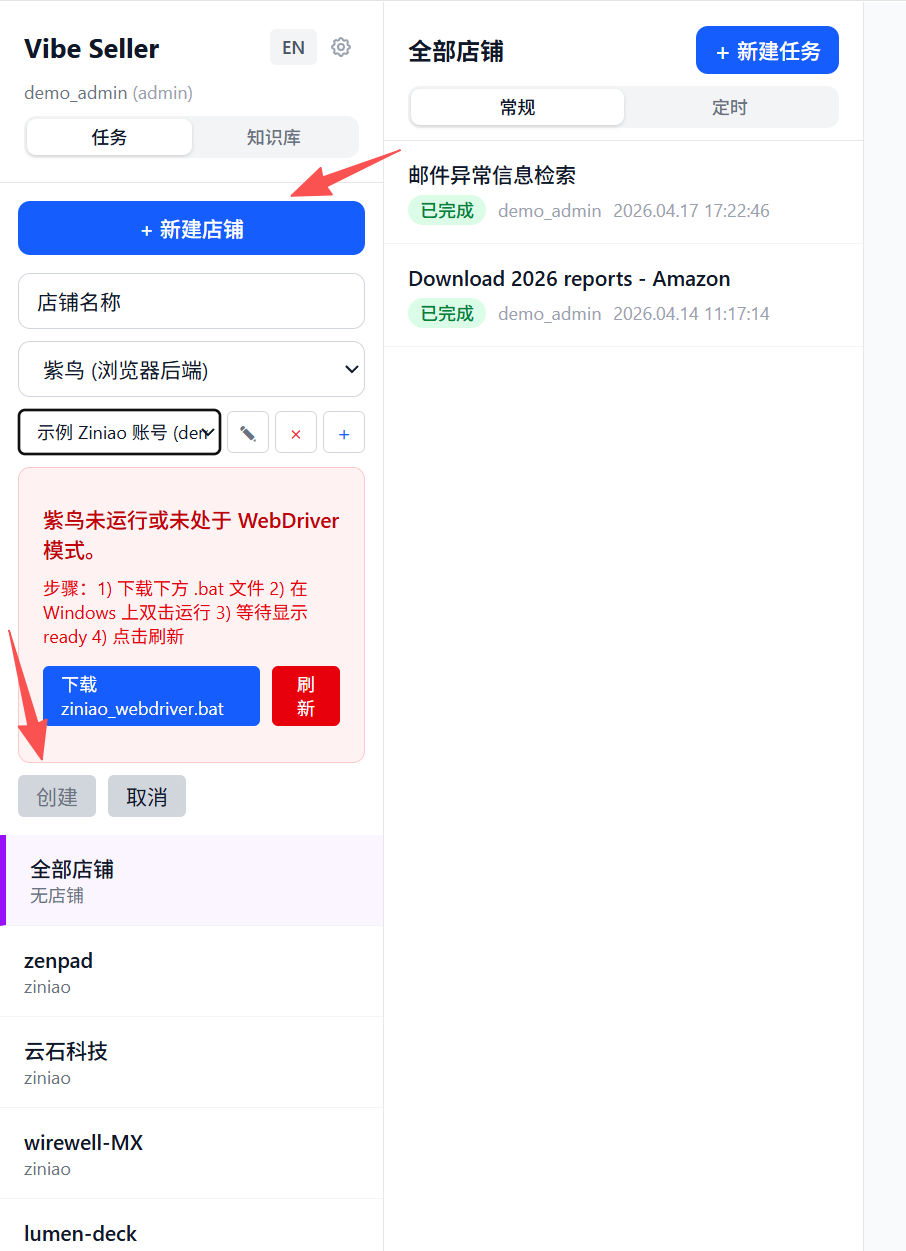
Ziniao runs on the Windows side, Vibe Seller runs inside WSL. Ziniao only runs one mode at a time, and Vibe Seller needs developer mode (a.k.a. WebDriver mode — that's what exposes CDP). WSL can't restart Windows-side Ziniao itself, so a launcher does it from Windows:
- Download
ziniao_webdriver.batfromSettings → Stores → Download launcher. - Double-click it on Windows.
- Back in WSL, hit Refresh on the Ziniao page in Vibe Seller — your accounts pop in automatically, no manual fields to fill.
7. (Optional) Wire up email / chat bots
Want the agent to do daily email triage and push critical items to a
group chat? Settings → Integrations:
- Email: enter the mailbox address for each store; the IMAP server fields auto-populate (gmail, outlook, self-hosted all supported), so all you fill in is the secret (an app password usually). Not sure how to generate one? Ask any AI with the name of your email provider. Agent scans daily afterwards.
- Chat bots (企业微信 WeCom / 钉钉 DingTalk / 飞书 Feishu / Slack): set up a group bot / custom robot / incoming webhook in the platform, paste the webhook URL — the platform is detected automatically (optional signing secret for DingTalk 加签 / Feishu 签名校验). High-priority anomalies post automatically.
- TickTick / Google Workspace: connect here if you want results synced into a calendar or Doc.
Skipping is fine — come back after your first task.
8. Create your first task
Home page → New task → pick a store → write one sentence:
- "Check ads and pause any keyword with ACOS over 30%."
- "Export the past 7 days of sales reports."
- "Review inventory and estimate next month's restock SKUs."
The agent plans the steps, drives the browser, and writes you a report. Auto mode is the default — just run it. The toggle in the task footer can flip to Plan mode if you want to review the plan before execution.
What you can do with it
Vibe Seller is an AI agent framework — the browser is one of its tools, not the only one. The agent can browse pages, read your email, send group chat messages (WeCom / DingTalk / Feishu / Slack), write to TickTick / Dida365, update Google Docs. Anything that fits observe → decide → act — whether a browser is involved or not.
A few cross-border scenarios it's commonly used for:
| Task | What happens |
|---|---|
| Ad tuning | Reads Campaign Manager, finds under- and over-spenders, proposes bid / budget changes, applies them with your approval. |
| Listing publication | Creates new listings from a template — title, bullets, photos, A+ content, variations. |
| Listing audit | Walks every store's catalog, flags suppressed / out-of-stock / inactive items. |
| Inventory check | Pulls stock levels; low-stock SKUs get pushed to the group chat automatically. |
| Warehouse / inbound setup | Creates inbound shipments, allocates SKUs to FBA / FBN, prints box labels. |
| Logistics lookup | Tracks in-transit shipments, freight delivery, customs clearance; flagged shipments get filed as TickTick todos. |
| Invoices & reports | Crawls tax docs, business reports, advertising reports; downloads are archived to Google Drive. |
| Email handling | Sorts buyer messages, forwards important ones to the group chat, drafts replies. |
| Anything you add | Write a Skill (a markdown file with steps) or teach the agent once — it'll remember next time. |
A single ad-tuning run is ≈ 3–5 minutes and costs about $1 in LLM tokens (rough — depends on provider and campaign volume).
Integrations
Beyond the browser, the agent can call these external services directly (hook up permissions in First run — no code):
| Service | What it does |
|---|---|
| Email (IMAP/SMTP) | Read your bound store inboxes, classify, forward, draft replies |
| Group chat bots (企业微信 / 钉钉 / 飞书 / Slack) | Push important events, cross-group notifications, forward buyer inquiries |
| TickTick / Dida365 | Auto-create todos (follow-ups, order tracking, periodic checks) |
| Google Workspace | Gmail, Drive, Docs, Sheets, Slides, Calendar — read, write, edit |
A single task can mix browser + service calls. e.g. "Find all slow-moving SKUs across stores" → browser pulls inventory → generates a Google Sheet → posts a chat summary → drops a "price review next week" todo into TickTick.
Platforms
Built-in Skills
- Amazon Seller Central (every marketplace — US / EU / MENA, etc.)
- Noon Seller Lab
These are the platforms the project was dogfooded against. The Skills capture page mechanics, navigation paths, UI gotchas. With the Skill in hand, the agent typically completes common operations (view ads, export reports, adjust bids, launch listings, ...) on the first try.
Anything else browser-based
- Mercado Libre (美客多), AliExpress (速卖通), Shopify
- Lazada, Shopee, TikTok Shop
- … and any other browser-accessible seller portal.
No pre-written Skill for these — the maintainers don't have test accounts, so the mechanics aren't documented upfront. The agent will fumble its first runs and need a few attempts to find the full flow.
The framework's built-in self-learning handles most of this on its own. As it runs, the agent takes notes — which button didn't work, which path succeeded, which dead ends to avoid — and saves them to that store's local knowledge. This happens without you needing to supervise; the agent records its own mistakes as it goes. Optional human hints get recorded too if you happen to drop any. Next run, prior experience is pulled in automatically, so it doesn't hit the same wall. After a few rounds, common operations on a new platform stabilize.
Once you've ironed something out, please consider upstreaming it as a proper Skill — see Contributing below.
Running
./start.sh          # default :7777
./start.sh 8080     # custom port
./stop.sh           # stop
./restart.sh        # restart
To let teammates use the same instance, they open
http://<your-host-ip>:7777 on the same LAN.
FAQ
How much does it cost?
Vibe Seller is free and open source. You pay your LLM provider directly. Rough scale: one ad-tuning run costs about $1 in DeepSeek tokens.
Which LLM should I pick?
Pick a model with a 1M context window that can read images, such as Claude Opus or GLM-5.3-Flash. Then pick the tier by how hard the task is:
| Task type | Tier |
|---|---|
| Complex — exploring a new platform (no built-in Skill), ad optimization, inventory strategy, long multi-page flows | The provider's SOTA flagship |
| Simple — email classification, fixed-flow data entry, structured extraction | A flash / budget tier is enough |
On complex tasks the agent reads the Skill, judges page state, calls tools and takes notes all at once; weaker models skip steps, garble tool arguments or forget earlier decisions. A failed complex run costs more tokens and time than getting it right once with a SOTA model. For simple tasks the choice barely matters, so save tokens.
How does Ziniao integration actually work? Developer mode vs normal mode / credentials needed / where they're stored
Ziniao runs in exactly one mode at a time:
- Normal mode — what you get when you double-click the Ziniao icon. UI-only, designed for manual daily work. No remote control.
- Developer mode (WebDriver) — same Ziniao install, launched
with extra flags so it exposes an HTTP API on
127.0.0.1:16851. This is the only mode Vibe Seller (or any external tool) can drive.
The two modes share one Ziniao process, so they can't run side by side. Switching requires restarting Ziniao.
- macOS / native Windows: Vibe Seller handles the swap itself —
kills any normal-mode instance and relaunches with
--run_type=web_driverwhen you open a store. Same automatic handling on both platforms, nothing for you to do. - Windows (WSL): WSL can't restart a Windows-side app across
the VM boundary, so the Windows side runs a one-line
.batlauncher (downloadable fromSettings → Stores → Download launcher) that does the kill + relaunch. Double-click it once; Vibe Seller picks the developer-mode session up via Refresh.
Credentials needed — Settings → Stores → Add Ziniao account,
three fields:
| Field | What it is |
|---|---|
| Company (公司名称) | Your Ziniao enterprise company identifier |
| Username (企业用户名) | Sub-account username under that company |
| Password | That sub-account's password |
Same credentials you use to log into Ziniao — Vibe Seller passes them to the developer-mode HTTP API to list your browsers and start sessions.
The BOSS account also needs to enable developer mode for your
company on the Ziniao Open Platform (one-time admin setup, see
https://open.ziniao.com/docSupport?docId=99). Without it, Ziniao
rejects the login (statusCode: -10003 — Ziniao's own error for
"developer mode isn't enabled for this company").
Where credentials are stored — all at
~/.vibe-seller/data/vibe_seller.db (local SQLite). No upload, no
telemetry path carries credentials out.
- Password is encrypted at rest with a key derived from your local install, and never returned by any HTTP endpoint — decrypted in memory only when Vibe Seller calls the Ziniao HTTP API.
- Company and username are plain strings — identifiers, not secrets (same shape as an email address).
Asking for the password is the necessary trade-off: developer-mode
auth requires it, no OAuth / token flow exists on the Ziniao side
today. If that's a deal-breaker, use plain Chrome instead
(Settings → Stores → Add Chrome store). Contributors curious about
the exact encryption implementation can check
docs/dev-guide.md.
Ziniao says "无权限通过 webdriver 登录" when I bind a store. How do I fix it?
The BOSS (admin) account hasn't enabled WebDriver login for your sub-account yet. Follow Ziniao's official guide and tick the WebDriver-login option in the Open Platform console:
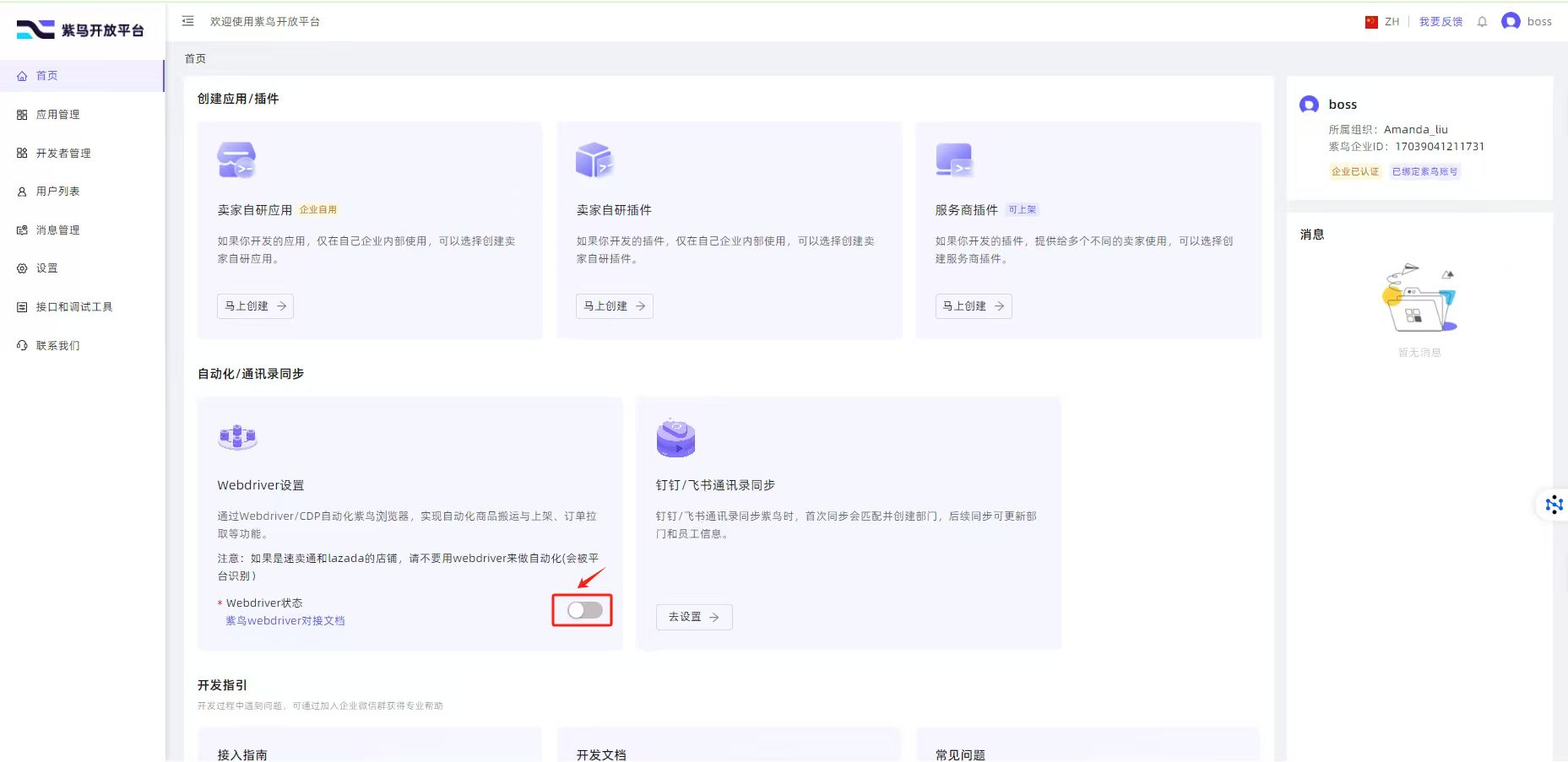
The admin (BOSS) account has to do this once. After it's saved, your sub-account can log in via WebDriver and Vibe Seller will bind the store on the next refresh.
Ziniao says "检测到您在新终端登录" and won't let me bind the store. How do I fix it?
This is Ziniao's new-device security check, not a Vibe Seller bug. The first time a given machine logs into an account, Ziniao requires a one-time manual approval:
- Open Ziniao on this machine and log in manually (normal mode, not WebDriver) with the same sub-account credentials.
- Ziniao will show a new-device prompt — submit the approval request.
- Have the admin (BOSS) account approve the device in the Ziniao backend.
After that one-time approval the device is trusted, and Vibe Seller's WebDriver login goes through on the next refresh.
Can I run it on a headless server?
Yes — you'll just need to solve the browser/GUI part yourself. Vibe Seller itself runs fine on a headless server; Ziniao (and the Chrome backend, if you want to watch it work) needs somewhere to render into — a virtual display (Xvfb), a cloud desktop VM, or VNC into a real GUI session all work. The simpler common setup, though, is a small always-on desktop machine — a Mac mini, a mini-PC, a spare laptop — that the team connects to over LAN.
What happens to my store data?
Everything — database, screenshots, logs — stays on your disk under
~/.vibe-seller/. The only outbound traffic is the prompts you send
to your LLM provider (which include whatever page snippets the agent
reads).
Where does the agent's "memory" live?
Per-store knowledge accumulates in ~/.vibe-seller/stores/<slug>/
as plain markdown — you can read it, edit it, copy it between
machines. Skills are markdown too. Nothing is locked inside a
binary blob.
How do I set up the login account and password?
There's no login by default. A fresh install drops you straight
into the main UI — login is opt-in and only activates after someone
turns it on in Settings → Account. If you're seeing a login page,
someone (probably whoever set this machine up for you) enabled it.
The factory account is admin / admin (email
admin@vibe-seller.local), but those defaults only hold while the
password has never been changed. The moment someone changes it in
Settings → Account, they're void — passwords are stored as one-way
bcrypt hashes and can't be read back out of the database, and the
username may have been renamed too (the admin account on your machine
isn't necessarily called admin).
Not sure which state you're in? One command tells you:
vibe-seller reset-auth status
It reports whether login is on, whether the default password still works, which accounts can log in, and which one is the default admin.
Locked out? Reset the password with
vibe-seller reset-auth password — with no arguments it prompts for
a new password and targets the default administrator account, even
if it was renamed. It writes straight to the database, no server
restart needed, and running tasks are unaffected.
Note that resetting the password does not log anyone out: sessions
ride on a JWT cookie in the browser (renewed on activity for up to 24
hours), and old sessions stay valid after a reset. To force everyone
back to the login page, stop the server, delete
~/.vibe-seller/data/jwt_secret, and start it again (if the deploy
pins the key with a JWT_SECRET env var, change or remove that
instead).
Don't want the login page (emergency off):
vibe-seller reset-auth disable    # turn the login page off
vibe-seller reset-auth enable     # turn it back on
With login off, anyone who can reach the port acts as the default admin — fine on a trusted LAN, don't expose it to the public internet.
Running from a source checkout (no vibe-seller command)? Use
scripts/reset_auth.sh (Windows: scripts\reset_auth.bat) — same
arguments.
Docs
docs/dev-guide.md— full feature reference, API, project structure, testingDESIGN.md— architecturedocs/— subsystem deep-dives (browser, events, scheduling, workspace, etc.)CLAUDE.md— contributor guide for Claude Code
Contributing
PRs welcome — whether you write the code yourself or let Claude
Code / Cursor / your coding agent do it. Python side is Google
style (ruff-enforced); frontend is TypeScript strict + ESLint.
CLAUDE.md is the project conventions doc — it's
written for AI agents and reads cleanly as a contributor guide.
License
Community
- Slack — join the VibeSeller workspace
- WeChat — scan to join the user group (works from a personal WeChat account; no WeCom install needed):