DingTalk (钉钉)
Create the bot in DingTalk
- Open DingTalk, enter the group and click the group settings gear at the top right → Robots → Add robot, choose the custom robot (some clients call the entry "Smart group assistant"). Normal and external groups both work; the bot posts to the group only, never to one-to-one chats.
- Name it (an avatar is optional), then set up security — DingTalk
requires at least one of:
- Custom keyword: up to 10; every message must contain at least one of them. Note one down for Vibe Seller's 自定义关键词 (keyword) field — Vibe Seller appends it to any message that lacks it.
- Signing (加签): copy the
SEC…secret into Vibe Seller's 加签 (signed secret) field; every message is signed automatically. - IP range: only these public egress IPs may call the webhook. If you use this one, just tick IP 地址段 (IP range) in Vibe Seller — there is nothing to fill in.
-
Accept the terms, click Done and copy the Webhook URL:
https://oapi.dingtalk.com/robot/send?access_token=xxxxxxxx
Official docs: Custom robot access · Custom robot security settings
Good to know:
- At most 20 messages per minute per bot; going over throttles the bot for 10 minutes.
- Markdown messages get a title derived from the first line — that is what notifications and the chat list show.
- No file sending; keep messages under ~20 KB.
Add it in Vibe Seller
- Open Vibe Seller, go to Settings → Integrations → Chat bots, and click Add Bot;
- Enter a name (e.g. "Ops alerts") and paste the Webhook URL you just copied — the platform is detected as DingTalk and a "Security settings (pick at least one)" section appears. Tick at least the setting you actually configured in the group; only the ticked option's field shows (tick every one the robot uses — DingTalk checks each of them):
- 加签 (signed secret): paste the
SEC…secret; - 自定义关键词 (keyword): one of your keywords (messages without it are appended automatically by the server);
- IP 地址段 (IP range): nothing to fill in — the range is set in DingTalk; this only records that you use it.
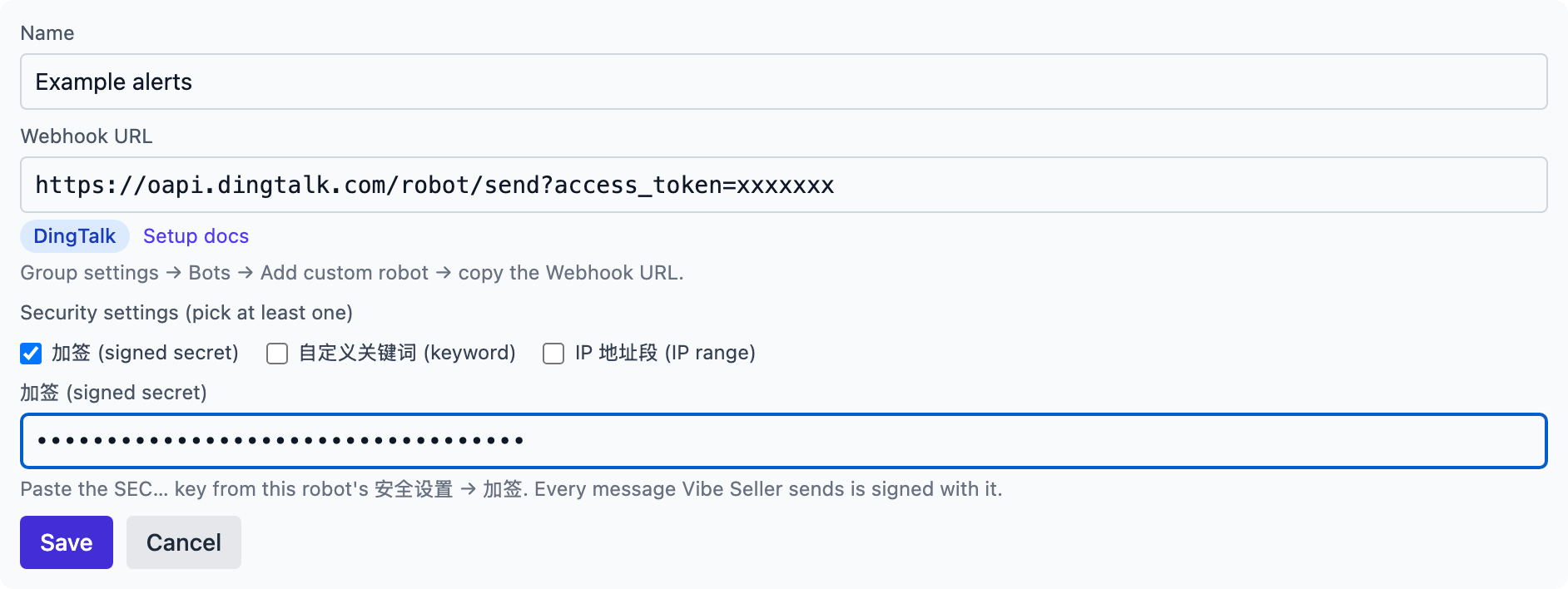
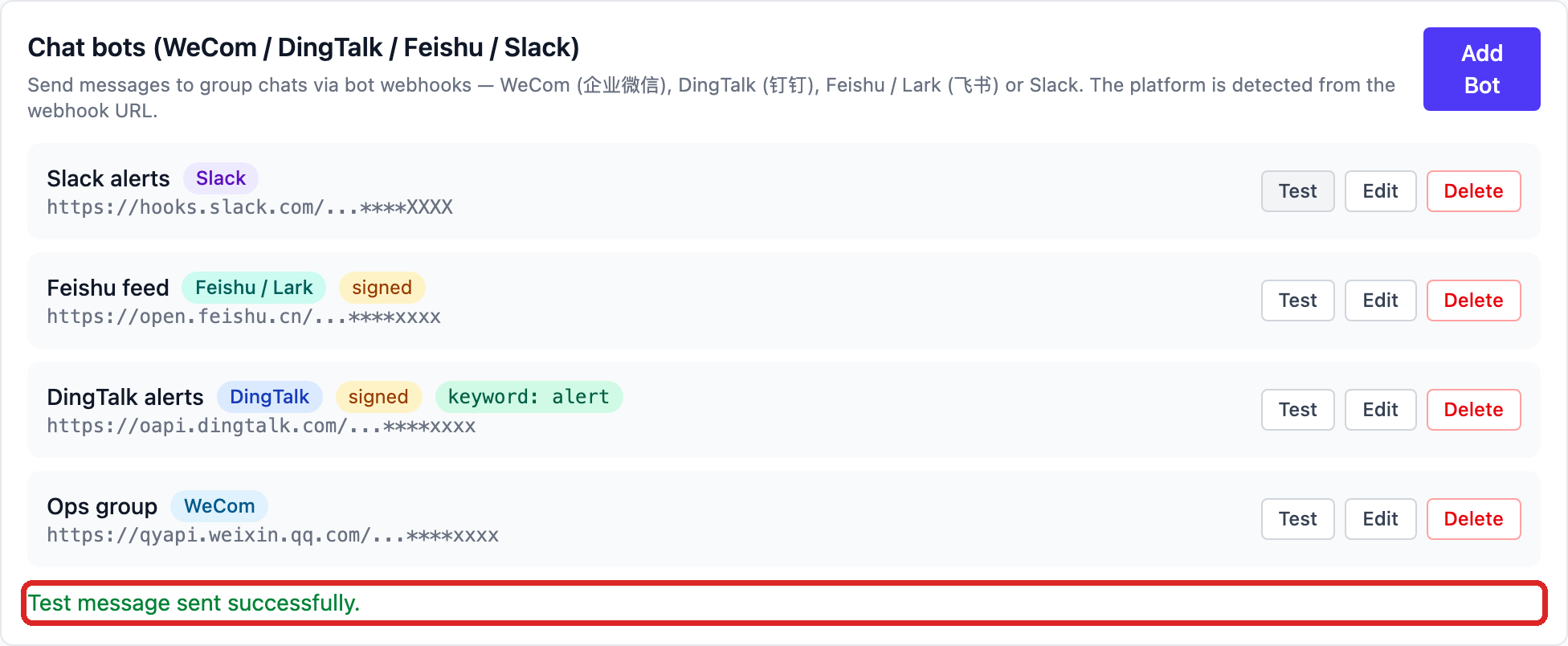
- Click Save — the list row shows the platform badge, whether the bot is signed, and its keyword;
- Click Test on the bot's row: a green line appears and the group receives the test message:
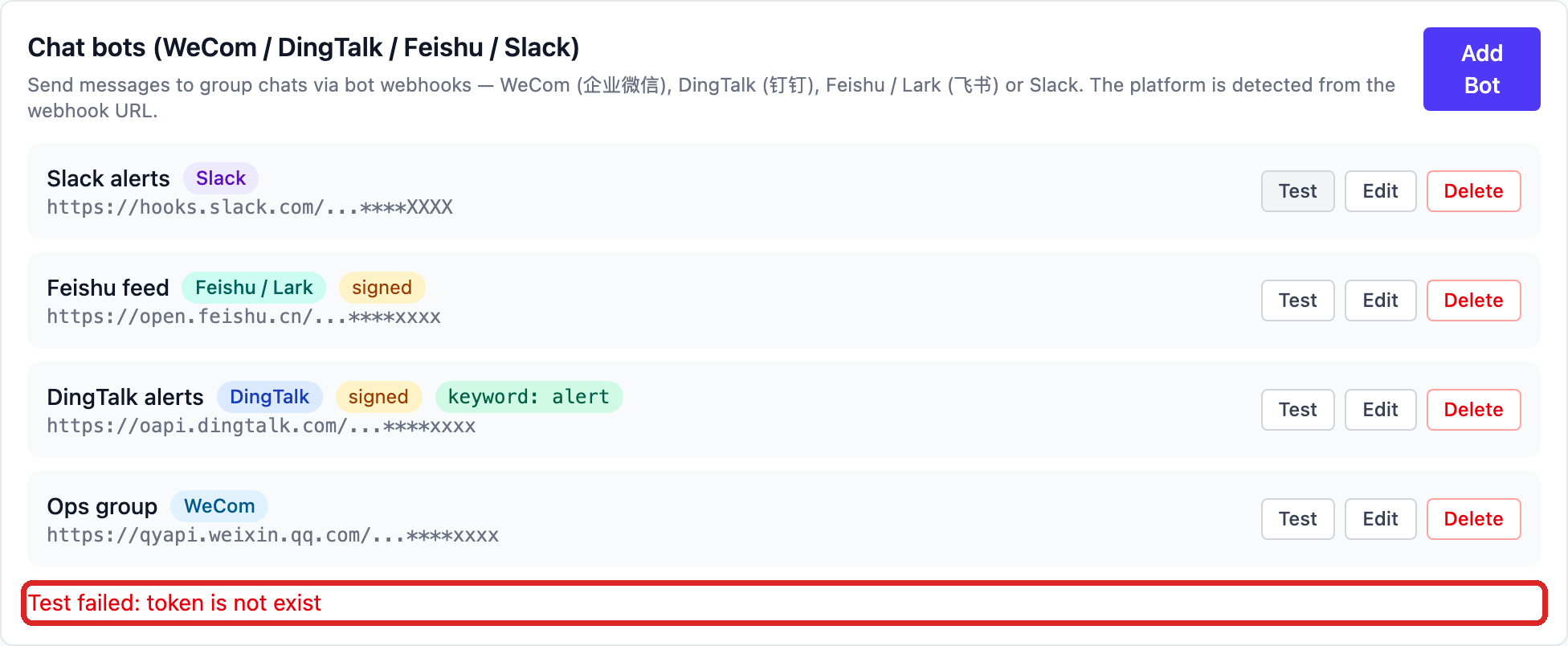
When a test fails, DingTalk's real error shows under the row — the
token is not exist in the screenshot (error 300005) means the
access_token is wrong or the bot was removed; re-copy the address in the
group and save again:
Other error codes are explained in Chat bots.