Export a Ziniao store's financial data with Codex and analyse it
At month-end you want to know how much Store A actually made over the last few months and where the money went. One sentence in Codex does it: Vibe Seller signs in to Seller Central with Store A's Ziniao browser and downloads the last 3 monthly transaction reports; Codex takes the reports, works out sales, each fee, refunds and net payout per month, and tells you which fee grew the most.
About 5 minutes to set up. Claude, WorkBuddy, Qoder and the other tools work the same way.
Before you start
- Store A is bound to a Ziniao browser and can sign in to Seller Central (see Stores and browsers);
- Codex is connected to Vibe Seller (see Connect Codex).
1. Say it in Codex
Start a new chat and paste this, with your own store name:
Use Vibe Seller to open Store A and download the last 3 monthly transaction reports (Monthly Transaction under Payments). Once they're downloaded, fetch the files and, per month, total sales, each Amazon fee (referral, FBA fulfilment, storage, advertising), refunds and net payout; show each fee as a share of sales and point out which fee grew the most, and in which month.
2. What happens while it runs
- Creates the task: Codex finds Store A in Vibe Seller and creates a task on that store;
- Downloads the reports: the task signs in to Seller Central with Store A's Ziniao browser, opens Payments → Reports Repository, picks each month and downloads the 3 monthly transaction reports into the task's files. Finding the report, picking the month and downloading are already covered by the built-in reports skill — you don't have to teach it;
- Waits: Codex waits in the chat until the task finishes. If the task needs an answer from you or a plan approved, the question shows up in the chat;
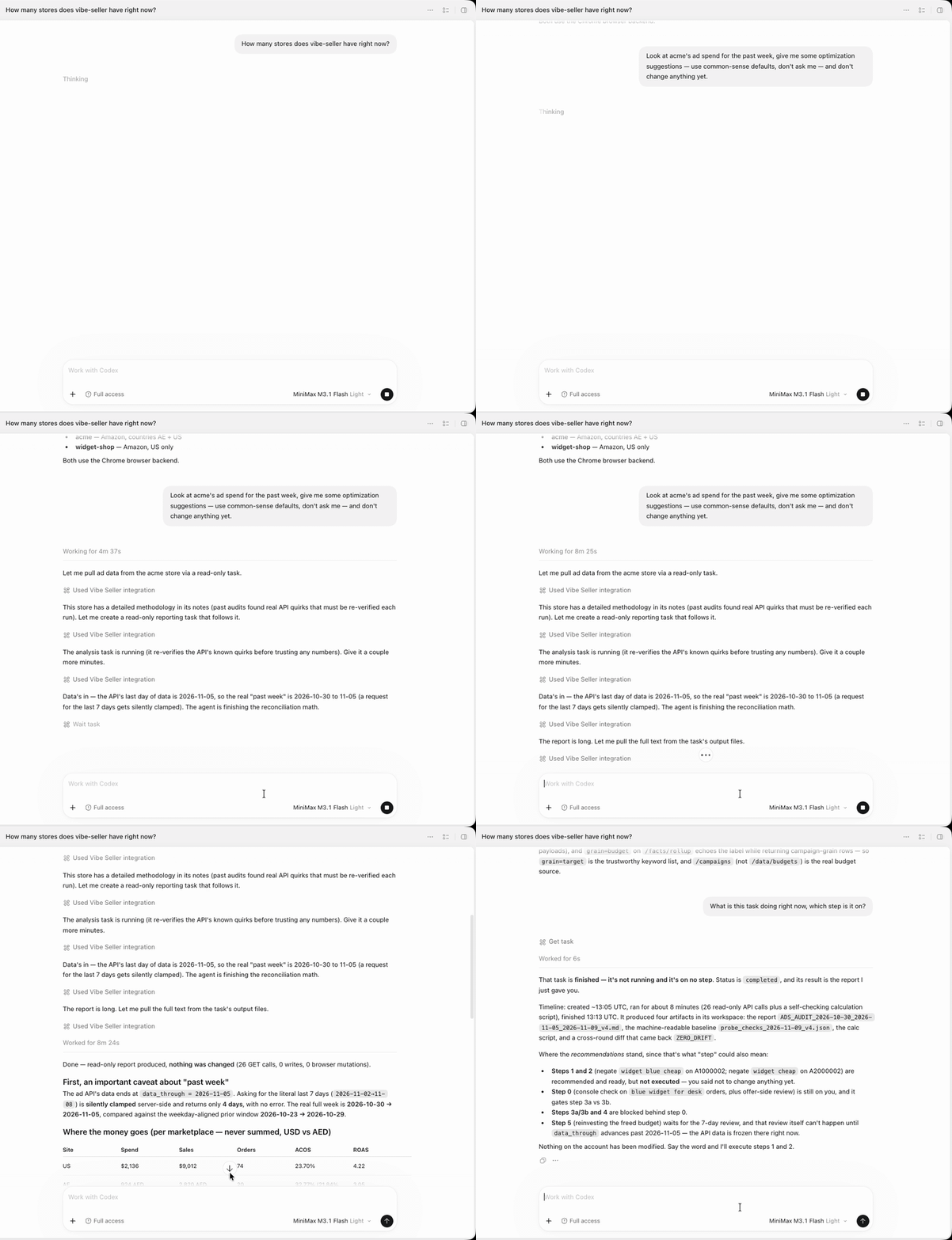
- Fetches the files and analyses them: when the task is done, Codex pulls the 3 reports, reads every transaction, totals them by month and gives you a comparison table and its findings in the chat.
3. Keep analysing
Codex already has the reports, so for a different angle just keep asking in the same chat — no new task needed:
- Which SKUs spent the most on ads?
- Group the refunds by reason.
- Put it in an Excel workbook, one sheet per month.
The task also shows up on the Vibe Seller Tasks page, just like one you created by hand. Open it to see the run and the result; the Generated Files panel at the bottom holds the 3 downloaded reports — download one, or take everything with Download All (ZIP).
FAQ
It answered, but didn't actually create a task?
It answered from its own knowledge. Say create a Vibe Seller task explicitly.
One month's report is missing — how do I get it?
In the same chat, ask Codex to send a follow-up to the same task, e.g. download the August report too; the task continues from its last result. Don't Re-run — that clears the task's workspace and the reports already downloaded go with it.
Can the AI skip my confirmation and change my store directly?
No. It can only work by creating tasks, and plan approval and the other checks are exactly the same as in the web UI.
Can't connect, or getting 401?