Tasks
A task is the unit of work in Vibe Seller: you tell the AI what you want in one sentence, it plans the steps, drives the browser, and hands you a result report. The single most important thing to know first: where you create a task decides which browser it gets, what it remembers, and whether it may run without asking you. That comes first below; everything else follows.
Creating a task
The entry point is the Tasks page in the sidebar:
- Pick the scope — click a store in the left store list to create the task under that store; stay on All Stores (no store selected) to create a cross-store task;
- Click New Task, fill in a title and a description — the description is just you telling the AI what to do, the way you'd brief a colleague, e.g. review the ads and pause every keyword above 30% ACOS or export the sales report for the past 7 days;
- Attach images or files if needed — drag files into the input, paste a screenshot with Ctrl+V, or click to browse (PNG, JPEG, GIF, WebP and PDF, up to 100 MB each). Attachments land in the task's workspace where the agent can read them directly;
- Submit. By default the task starts executing right away — there is no separate run button.
Which AI profile (model/provider) the task uses is switched in the task-detail footer; it follows your default profile unless you pick another one.
Two scopes: where you create a task decides what it can do
| Task under a store | Task under All Stores | |
|---|---|---|
| Browser | That store's Ziniao / Chrome profile — already logged in, straight into the seller center | A generic Chrome that can only reach public web pages (search, tracking/logistics sites); it cannot open any store's seller center |
| Memory | Only that store's accumulated knowledge — never mixed with other stores | Cross-store shared knowledge |
| Execution mode | Auto by default, switchable to Review | Always Review — it can never run on its own |
| Typical use | Ad tuning, report exports, listings for one shop | "Check every store for inactive listings", cross-store summaries, looking things up on the public web |
The app says the same thing: while you're in the All Stores list, it states that these tasks "have a general web browser for public pages (search, tracking/logistics) plus email and messaging — but not a specific store's backend", and tells you to click the store on the left first if you need the seller center. Cross-store tasks can read email and send messages to your group chat — neither needs a browser.
How an All Stores task still gets into your stores: parent and sub-tasks
A cross-store task isn't shut out of the stores — it acts as the dispatcher. It browses public pages itself, and anything that must happen inside a store becomes a sub-task: one per store, each using that store's logged-in browser session. You see them under Subtasks in the parent task's detail, each with its own status.
The parent parks itself in Waiting after creating its sub-tasks and completes automatically once every sub-task is done, with an aggregated summary — one line per sub-task, ✓ or ✗ plus its result. Afterwards you can open any single sub-task and keep talking to it; if a finished sub-task is resumed, the completed parent reopens and re-aggregates when it finishes again.
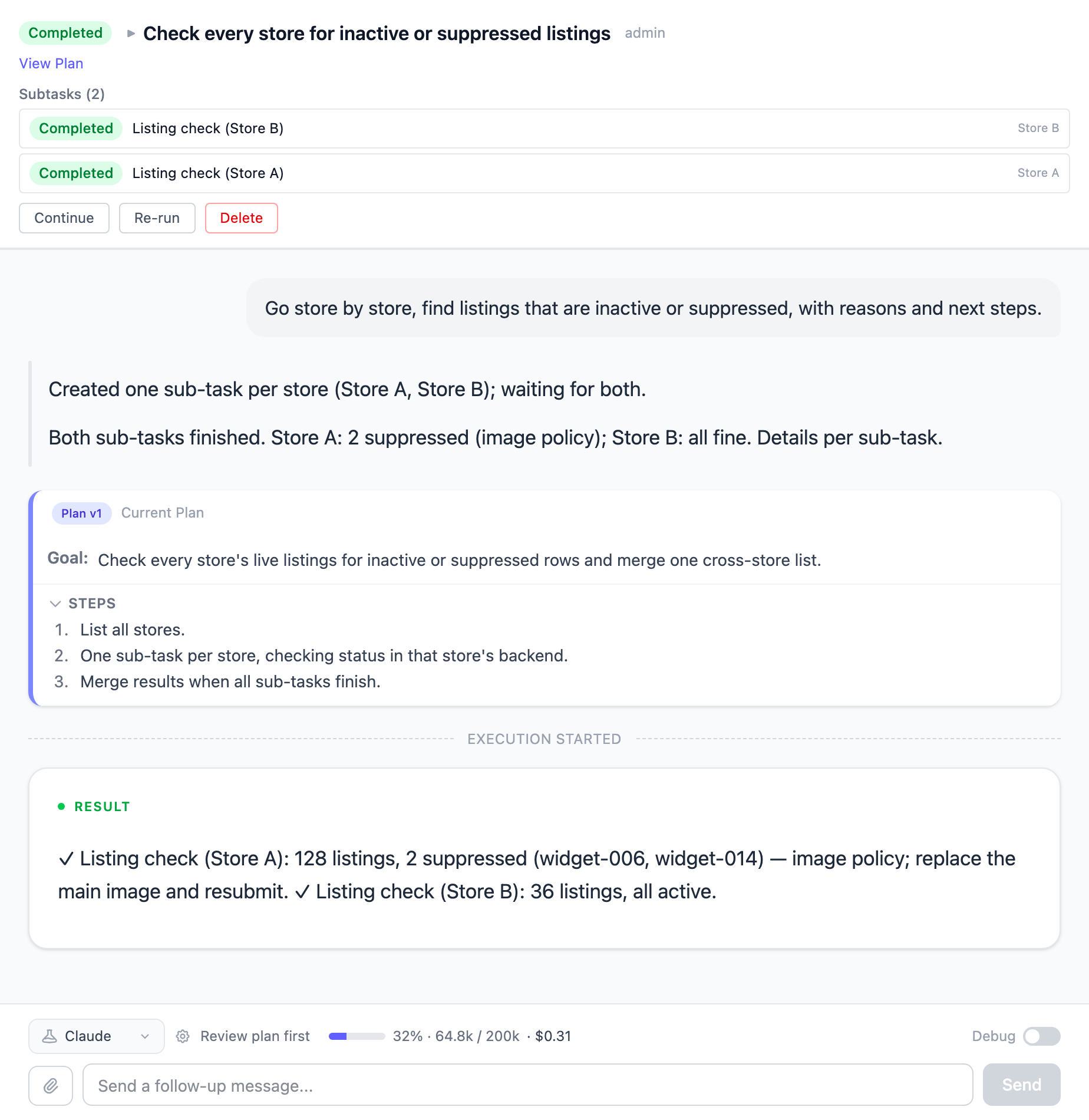
So: for one store's work, create the task under that store — one hop less, and it shares that store's memory. Use All Stores tasks for patrols and summaries that span the shops and let the AI split the work and merge the results. Schedules have the same two scopes — see Scheduled Tasks.
Auto mode vs Review mode
- Auto — "Skip review, run immediately": the AI plans and executes on its own; watch and stop any time. Good for routine operations you trust.
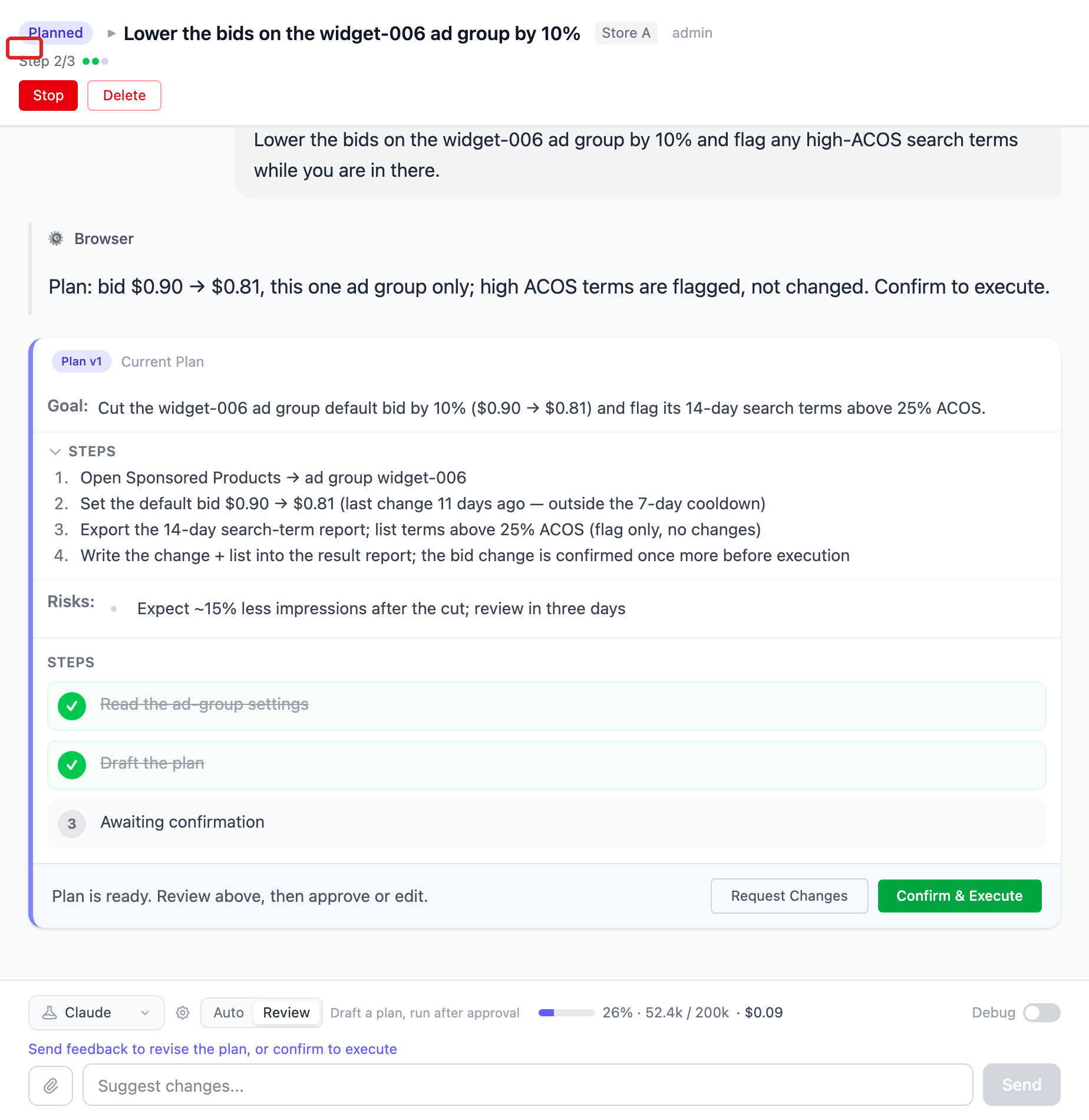
- Review ("Review plan first") — the AI first writes an Execution Plan and the task waits at Planned. Click Confirm & Execute to let it start; if the plan isn't right, type your feedback and send — sending feedback is the rejection: the agent rewrites the plan (v2, v3 …) until you approve.
The Auto / Review switch sits in the task-detail footer, with a helper line ("Skip review, run immediately" / "Draft a plan, run after approval"). Your default for new tasks is set in Settings → General → Task Defaults → Default Execution Mode. You can flip the switch after creating a task too; the change takes effect from the next run (follow-ups included). An All Stores task has no switch — the footer just reads "Review plan first": this kind of task always shows you the plan before executing.
The statuses you'll see
Task list and detail show one of these badges:
| Status | Meaning |
|---|---|
| Pending | Created, not launched yet |
| Queued | Waiting on a browser conflict or a concurrency slot (see Concurrency) — nothing is running yet |
| Planning | Review mode: the AI is writing the plan |
| Planned | Plan ready, waiting for your Confirm & Execute |
| Running | Working now |
| Waiting | The AI waits for you or for a condition: an unanswered question, an email reply to arrive, sub-tasks to finish |
| Completed | It delivered a result report |
| Failed | Something went wrong — read the reason, then follow up, retry, or stop and recreate |
Completed doesn't mean "everything got done": when the AI couldn't finish part of the work, it says so in the result report as caveats and the status is still Completed. Tasks that wait on a condition give up after 30 days and turn Failed.
Answering the AI when it asks
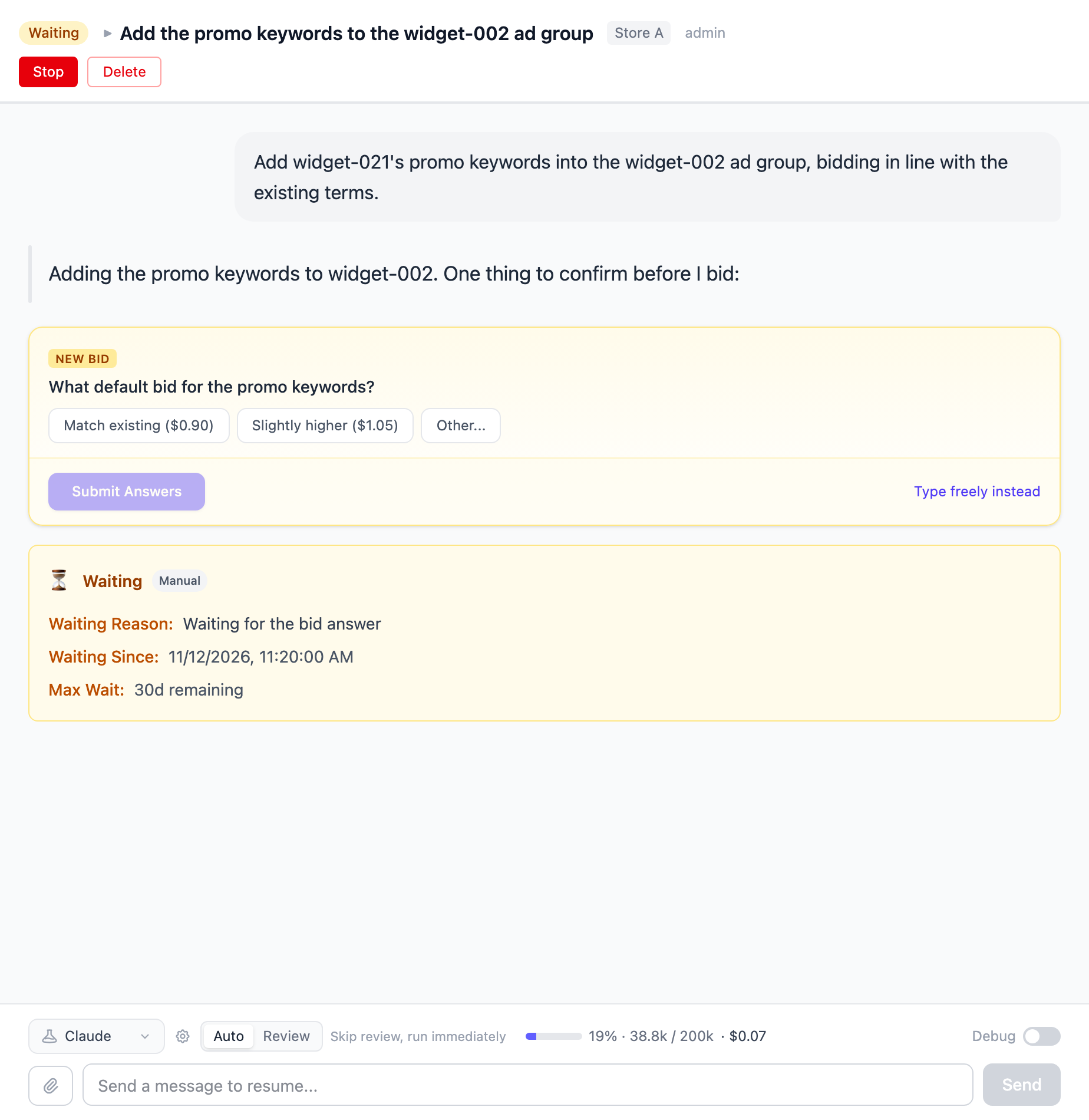
While a task waits for you, the conversation shows a question card: option chips the AI offered — click one, or choose Other... and type. With all questions answered, click Submit Answers. You can also ignore the options (Type freely instead) or simply send a normal message: the card is then marked "You replied instead — not answered", and the agent reads your message and continues — it doesn't stay stuck.
Messaging a running task
You can send a message at any time. While the agent is mid-step the message is delivered when the current step finishes ("The agent is working — your message will be sent when the current step finishes"); while it's waiting for you, the message redirects it immediately ("The agent is waiting for you — your message will redirect it right away").
When the task is done
- Result — the task ends with a result report: what it did, what it found, and what it couldn't do;
- Files — files produced during the run live in the task's workspace on the
server (
~/.vibe-seller/tasks/<task id>/; the report usually names the paths). Store tasks' important outputs (reports, exports) are filed into that store's Run Data, which you can browse and download on the Knowledge page; - Chat — the conversation stays open: see the next section.
The task-detail footer also shows a Usage chip: how much context is used (the percentage turns red near the limit), input/output tokens, turns, and an estimated cost from public model prices (subscription-covered runs show "Included in plan").
Continue, retry, stop, delete
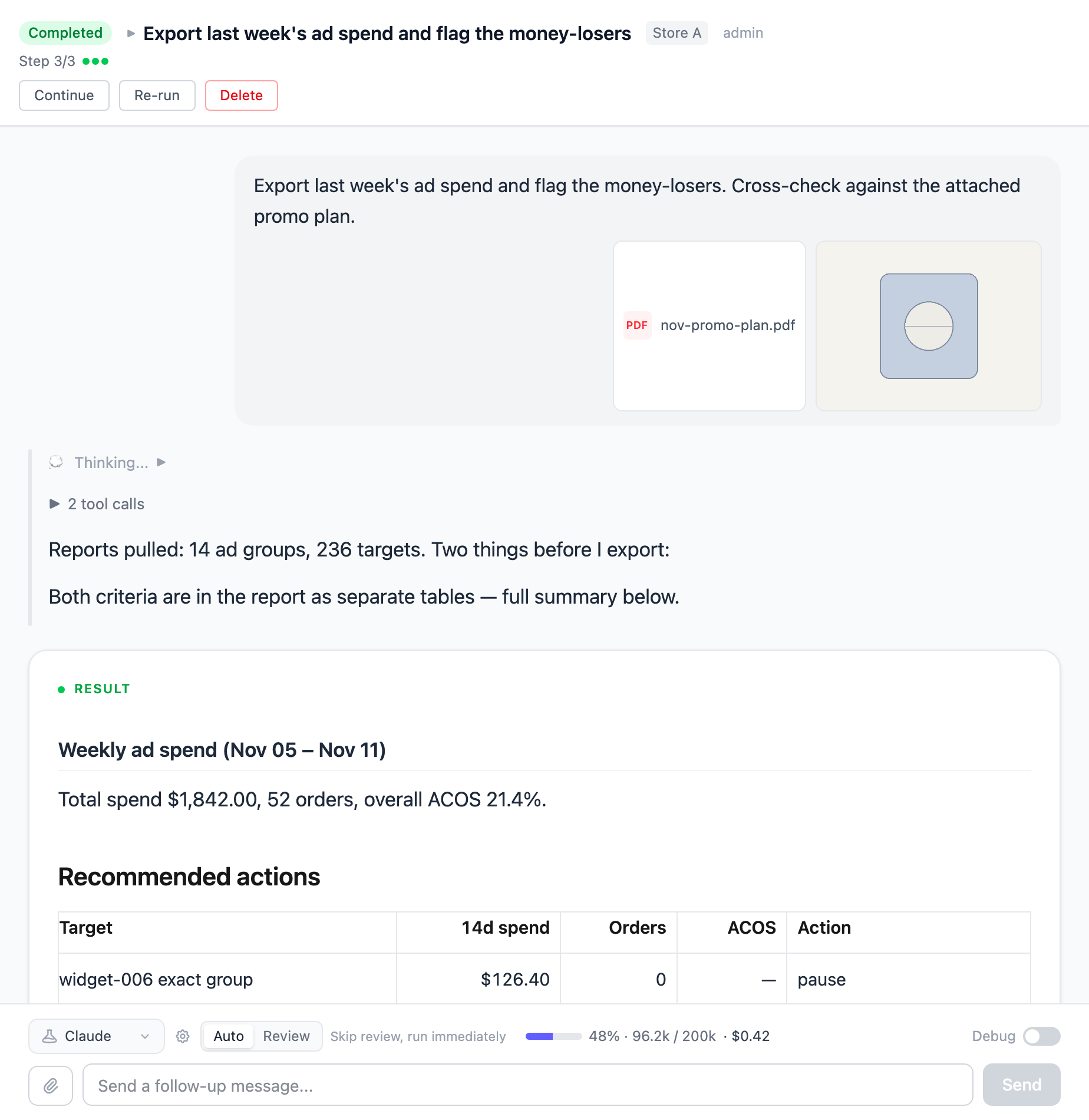
- Follow-up message — sending a message to a completed or failed task continues the same task: same session, same workspace, so downloaded reports and half-finished work are still there;
- Continue — the Continue button in the header says it for you: resume now, reuse the progress and data already on disk, and do not restart from scratch. Perfect for "it stopped last night, pick it up today";
- Retry — ⚠️ Retry wipes the task. It clears the conversation and the on-disk workspace and starts from scratch (the confirm dialog: "This clears the task's history and restarts it from scratch. Are you sure?"). Files the task produced — downloaded reports, scraped data — are lost and would have to be collected again; your own attachments survive. To build on the last run, send a follow-up or press Continue — not Retry;
- Stop — anytime. The task is marked Failed with "Task was stopped by user"; history and files stay, and you can still follow up or retry;
- Delete — removes the task together with its whole sub-task tree and the files on disk; the UI warns you when children exist. A running task can't be deleted — stop it first.
Completed/failed tasks aren't hidden from the list, but they are cleaned up: by default the server deletes finished tasks older than 30 days (the summary parents of cross-store runs are kept so run history stays readable). Change the window or disable it in Settings → General → Task Defaults → Auto-delete old tasks (0 = never).
Concurrency and queueing
Tasks for different stores run in parallel — each store has its own browser. Within one store, several tasks also run side by side as separate browser tabs. A task queues (status Queued) in exactly two situations: it needs the same Ziniao profile switched to a different country site (one profile, one country at a time), or a schedule runs with "Run stores one at a time" ticked. Separately, there's a machine-wide cap on how many agents work at once — Settings → General → Max Concurrency (default 2, up to 10).