Export last month's sales report every month and post it to the group
At 09:30 on the 1st of each month Vibe Seller uses this store's own browser to get into Seller Central, exports last month's sales data, saves it as CSV per marketplace in the task files, and sends the monthly summary — revenue, orders, refunds, anything unusual — together with those CSVs to your WeCom group.
Setup takes about 5 minutes; after that it runs once a month by itself.
What you need first
- A store with its browser backend bound and able to sign in to the seller console (see Stores & Browsers);
- A WeCom group bot: file delivery works on WeCom only today — DingTalk, Feishu and Slack bots can send text but not files (see Chat bots).
1. Add the group bot
Exactly the same as step 1 of the mailbox example: Settings → Integrations → Chat bots → Add Bot, paste the Webhook URL, Save, then Test.
2. Create the schedule
On the Tasks page in the sidebar, select this store on the left (reports are exported per store, and a store task has no mode to choose), switch to the Scheduled sub-tab and click New Schedule — the dialog is titled "New Schedule for {store}".
Title: "Monthly sales report"
Description (copy this block, and replace the group name with yours):
Export last month's sales report for this store, save it as CSV per marketplace in the task files, then send the CSVs plus a monthly summary (revenue, orders, refunds, anything unusual) to the "Ops group" bot.
Frequency: every 1 months; Day of Month: 1; At time: 09:30; Timezone: the zone you work in — the schedule fires in that zone. The report always covers the previous calendar month, so any of the first few days works.
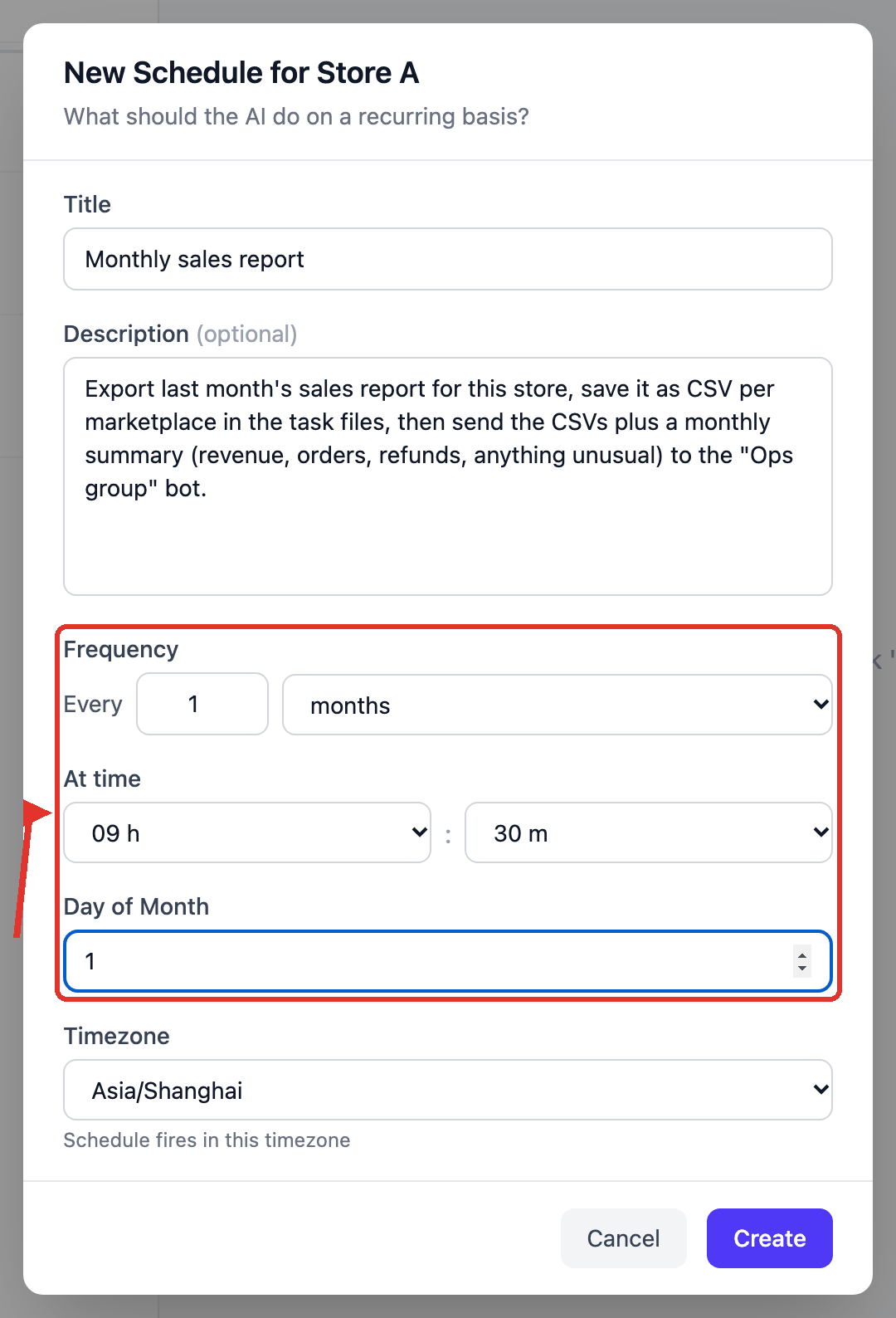
Click Create. The AI drafts the plan right away (export order lines → summarise by SKU → post to the group), freezes it on the schedule, and the status becomes Ready; every later month runs that plan — see The plan is authored once, at creation.
You don't restate "last month" each time: on every fire it works out the previous calendar month from the date then. Exporting Amazon reports is something the built-in report skill already knows: Business Reports, FBA, tax documents and ad reports — the entry points and the download steps are covered, so you don't have to teach it.
3. Several stores: one schedule each
Per-store schedules are the clearest way to do reports: create a "Monthly sales report" under each store and each posts its own files to the group. All Stores · Fan out covers every store in one schedule too, but each store's task sends its own files, so the group gets N messages — with many stores, separate schedules read better. Scopes are compared in Two scopes and the execution modes.
What you get after it runs
Open that round's run on the Tasks page: the result is numbers, and a file list.
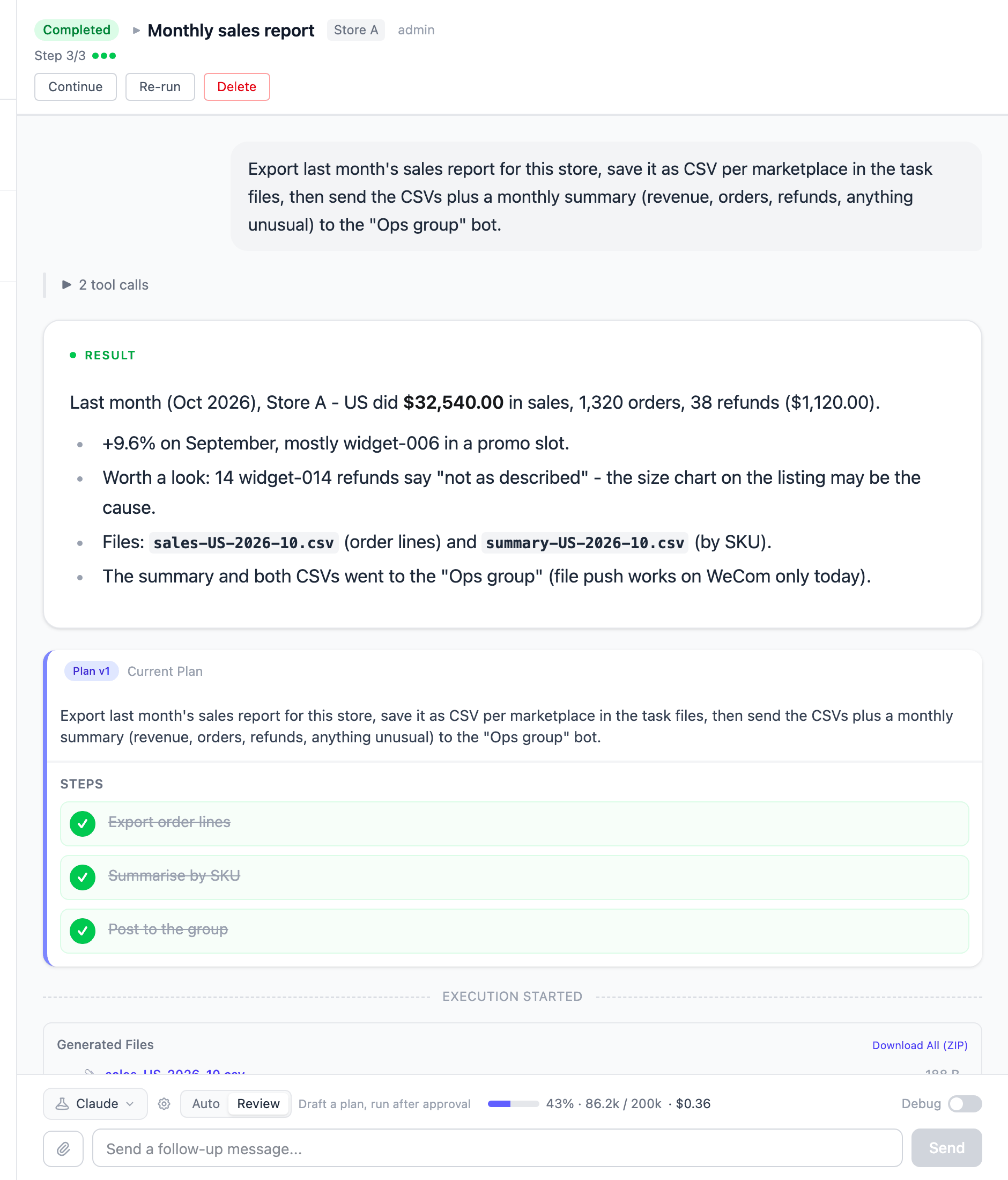
At the same time the WeCom group gets the summary with those CSVs under it. You can also take them from the Generated Files panel at the bottom of the task, or click Download All (ZIP).
Where the files live
- This run's files are in the task's working directory (on the server:
~/.vibe-seller/tasks/<task id>/); the result report usually names the paths; - Important outputs are archived by the AI into this store's Run Data, bucketed by month — open the Knowledge page, pick the store, and browse or download from there. When a later run needs the same data, it reads the files already there instead of scraping page by page again; that's why report tasks get faster over time, see Run Data.
Questions this example gets
DingTalk / Feishu / Slack groups don't get the files? File delivery is WeCom-only today (5 bytes to 20 MB per file). On other platforms the summary still arrives; take the files from the task or from the store's Run Data.
Weekly instead, or a month I missed? For weekly, set the frequency to every 1 weeks, pick a day and say the window in the description ("the previous calendar week"). To back-fill a month you skipped, don't touch the schedule — open any run and ask "also export the 2026-09 one"; it repeats the same recipe for that month. Between runs of the same schedule the AI keeps its own cursor — which day the report got to — and picks up where it stopped, with nothing for you to configure: see Memory across runs.
Is the data complete on the 1st? Not everything Amazon publishes is out by then: some reports (monthly storage fees, for one) land later in the month. A missing file is never substituted with another one — the result report says which file it could not get, and the next run or a follow-up fills it in.
Does Re-run throw away the report it already downloaded? Yes. Re-run clears this task's conversation and working directory, and the files it produced go with it. To build on the last result, use Continue or just send a follow-up, e.g. re-summarise the US file by SKU. Continue, retry, stop, delete covers the difference.
The report didn't export, or the numbers look wrong? The result report says which step it didn't complete. The usual causes: the store's browser lost its login, the report page changed, or the date range wasn't what you wanted. First confirm you can get into the console with that store's browser, then ask in the same task to redo that step.
I want the whole month-end set, not only the sales report Say "this month's full report set" in the description. The transaction report, ad reports, returns and storage fees are then delivered per marketplace in their own folders, and the server checks the run against what this store's report list should contain: a gap comes back once to be fixed, and what still can't be had is stated in the result. If you only want one file, don't say "full set" — it won't be held to the whole list.