Scheduled Tasks
A scheduled task is "create a task automatically when the time comes": you write a recurring job (daily report export, weekly ad check, hourly inbox sweep) once, pick a timetable, and it fires on its own from then on.
Creating a schedule
The Tasks page in the sidebar has two sub-tabs, Tasks and Scheduled; on the Scheduled tab, click New Schedule. As with one-off tasks, where you create it decides its scope — Tasks explains the two scopes:
- Created with a store selected — the modal is titled "New Schedule for {store}"; each fire creates one task for that store, using that store's browser and memory;
- Created with no store selected (All Stores scope) — you get an extra Mode choice, covered in the next section.
Write what the AI should do on each recurring basis (the subtitle asks "What should the AI do on a recurring basis?" — phrase it like a task description), pick the frequency and time, submit.
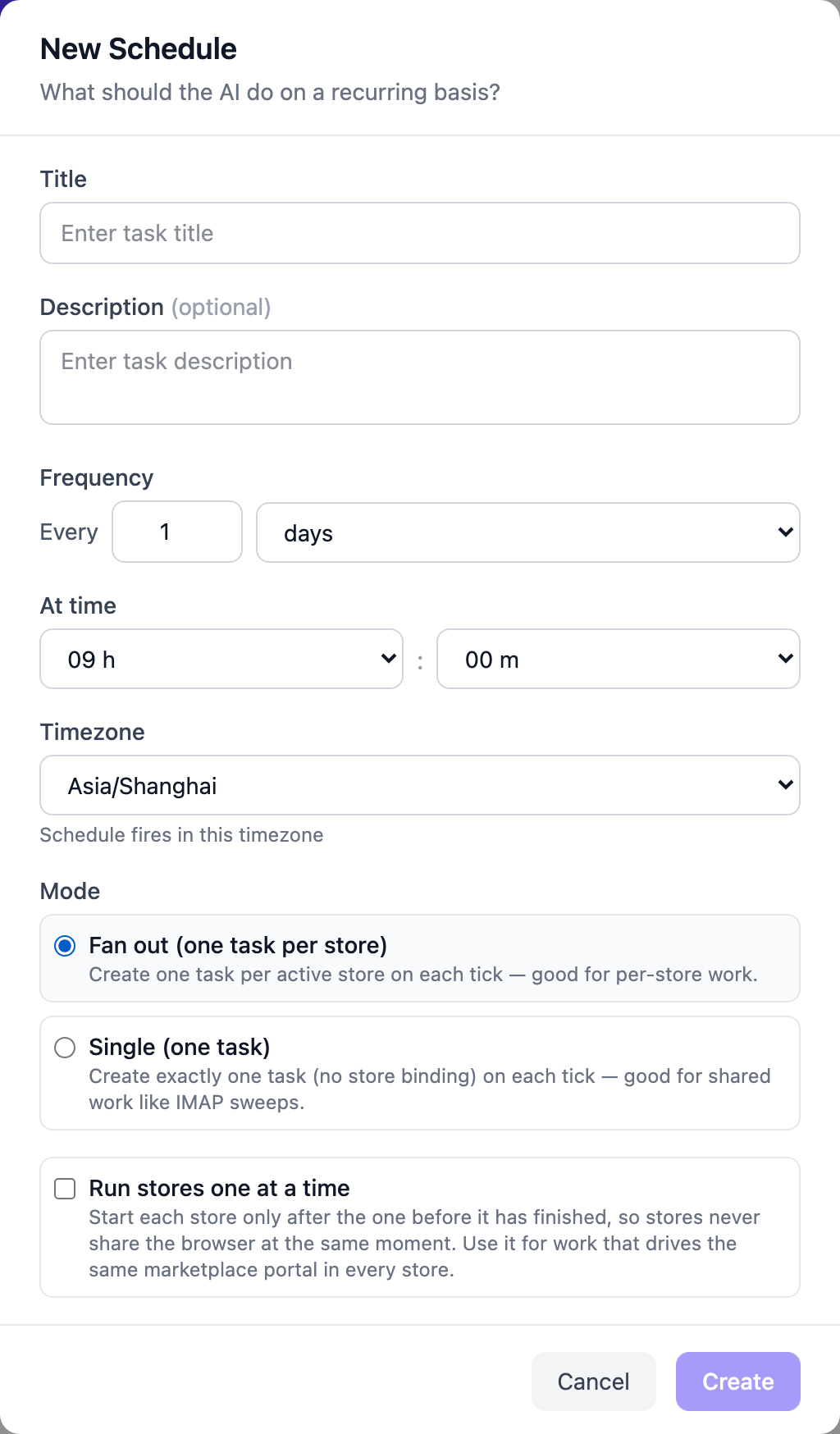
Two scopes and the execution modes
| Store schedule | All Stores · Fan out | All Stores · Single | |
|---|---|---|---|
| Per fire | 1 task for that store | one task per store, fired in parallel | exactly 1 task, bound to no store |
| Browser | That store's Ziniao / Chrome profile | Each store task uses its own store's browser | The generic web browser (public pages, email, chat messages); store-backend work is split into sub-tasks by the agent |
| Good for | One shop's reports or ad patrols | Every store doing the same job: weekly ad audit, listing patrol | Work that spans or sits outside stores: a shared mailbox, cross-store summaries |
Fan-out schedules have two optional behaviors:
- Run stores one at a time — the batch's store tasks line up and run one after another instead of sharing browsers at the same moment. Use it when every store logs into the same marketplace portal: on one machine the Ziniao profiles crowd into one client, and two stores driving the same portal at once starve each other. Unchecked, the stores run in parallel. One store failing does not block the rest of the line;
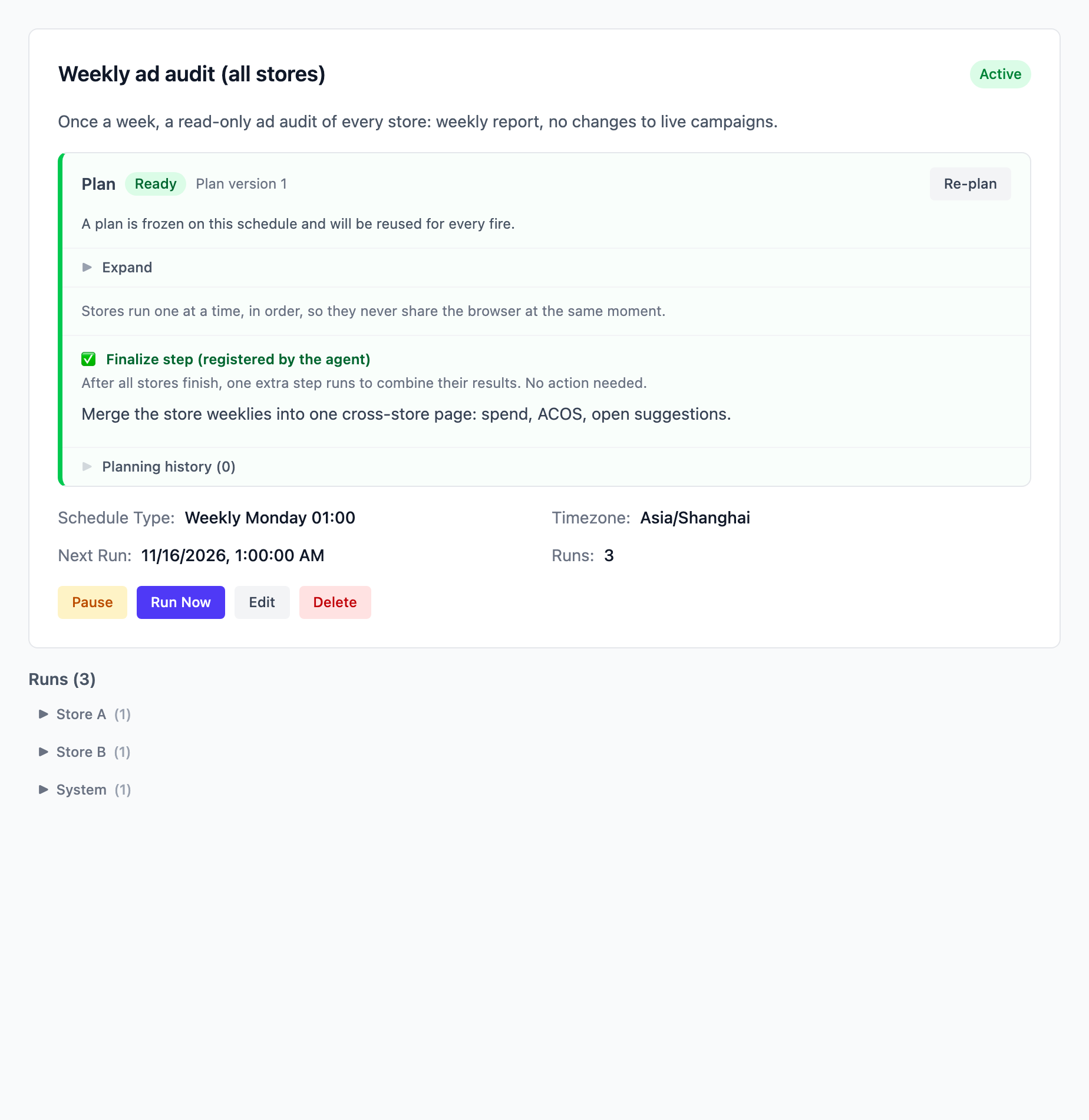
- Finalize step — when the job needs a single cross-store summary after every store finishes, the AI registers it while authoring the plan (the plan panel then shows "Finalize step (registered by the agent)"). Once the whole batch is done, the system automatically runs one extra store-less task that receives every store's results and merges them into the overall report. Nothing for you to do — just read it in the run history.
The plan is authored once, at creation
Every schedule you create in the web app goes through a plan step: right after creation the AI drafts the execution plan (the status badge reads Planning). When the plan is written it is frozen onto the schedule — every later fire executes that frozen plan directly, no re-planning — and the status becomes Ready.
Two things to know:
- The plan takes effect as soon as it is authored; there is no approve click. You can read the frozen plan any time in the schedule's plan panel; if it's wrong, press Re-plan and the AI authors a new version;
- Editing the schedule description voids the old plan (status becomes Plan stale). Until you press Re-plan, the schedule will not fire on its timetable, and Run Now is disabled too. Changing the title, frequency or timezone does not void the plan.
A failed plan (Plan failed) blocks firing the same way — press Re-plan to try again.
Frequency and timezone
Frequencies are "every N minutes / hours / days", or a weekly (pick the weekday) or monthly (pick the day of month) cycle; day/week/month runs also take an At time (hour and minute). A one-day interval displays as "Daily HH:MM" in the list.
Each schedule carries its own timezone — "the time it fires" is computed in that zone, independent of the server or where you are. New schedules start from your browser's timezone; the global default is set in Settings → General → Schedule Defaults → Default Schedule Timezone.
Defaults
Settings → General → Schedule Defaults controls two things: the default timezone above, and Default Mode — whether a new All Stores schedule starts with Fan out (one task per store) or Single (one task) pre-selected. (The default Auto/Review choice for one-off tasks lives next door under Task Defaults → Default Execution Mode.)
Pause, resume, Run Now
The schedule detail page has Pause / Resume and Run Now:
- Run Now fires once regardless of whether the schedule is paused — for a manual pass before a vacation, or a trial run right after you re-plan. The only precondition is a Ready plan (with a stale plan the button is disabled until you Re-plan);
- While one of this schedule's runs is still in progress, Run Now is disabled with the tooltip "A task is already running";
- Runs lists the tasks each fire created (the planning task is excluded); All-Stores runs are grouped by store. Open any run for the normal task detail — follow it up or retry it there. The next fire time is shown as Next Run.
AI profile
Schedules created in the web app follow your default AI profile: each fire takes whatever your current default profile is at that moment. Switch your default from model A to model B and every unpinned schedule uses B from the next fire — no per-schedule edits.
Schedules created by external agents (over MCP) can pin a specific profile; pinned schedules ignore your default. The toggle in Settings → AI profiles, "Sync scheduled tasks when changing the default profile" (off by default), exists for those: when on, changing the default also re-points your pinned schedules to the new default.
Memory across runs
Successive fires of one schedule don't start from amnesia: the agent keeps cursors between runs — "last email read", "last order processed", "last report date" — so each run handles only what's new. Nothing to configure; the agent maintains this per task type on its own.
Common recipes
| What you want | How to set it up |
|---|---|
| Export yesterday's sales report for this shop at 9:00 every morning | Schedule under the store, every 1 day at 09:00 |
| A weekly ad audit of every store, plus one merged summary | No store, Fan out + Run stores one at a time; the finalize step gets registered by the AI in the plan |
| Sweep the shared inbox hourly: reply where due, file what matters | No store, Single, every 1 hour |
Limits and gotchas
- Mode and store binding are fixed at creation. You can't convert a store schedule into an All-Stores one later — delete it and create it again;
- A Fan out schedule creates a task for every store on this server per fire — with many stores, mind concurrency and token spend;
- A schedule whose plan isn't Ready (Planning / Plan stale / Plan failed / No plan) skips its fires and refuses Run Now;
- If a fired task is stuck in Waiting for your answer when the next fire arrives, the scheduler cancels the stale waiting run rather than blocking the timetable — the new fire proceeds normally.