WeCom / Feishu / DingTalk
Once connected, the AI can work in WeCom (企业微信), Feishu / Lark (飞书) and DingTalk (钉钉) for you: write docs and sheets, send messages, schedule events, create to-dos. For example, it can put a store's sales numbers into a WeCom document and send you the link.
The AI uses each platform's official command-line program and official skills. Vibe Seller downloads, signs in and updates them every day: no Node.js, no terminal. Windows, macOS and Linux are supported.
| Platform | Official program | What the AI can do (excerpt) | Setup |
|---|---|---|---|
| WeCom (企业微信) | wecom-cli (WecomTeam/wecom-cli) |
Docs, sheets, smart sheets, mail, calendar, meetings, to-dos, drive, contacts; messages to the person who scanned, or to chats the bot has talked in recently | WeCom |
| Feishu / Lark (飞书) | lark-cli (larksuite/cli) |
Messages and chats, docs, sheets, Base, drive, wiki, calendar, meetings and minutes, tasks, mail, approvals, contacts | Feishu |
| DingTalk (钉钉) | dws (DingTalk-Real-AI/dingtalk-workspace-cli) |
Direct, group and robot messages, AI tables, docs, drive, wiki, calendar, to-dos, mail, minutes, contacts, DING | DingTalk |
Compared with chat bots: a chat bot only pushes messages into a group; this connects the whole office suite, read and write. You can use both.
See it work
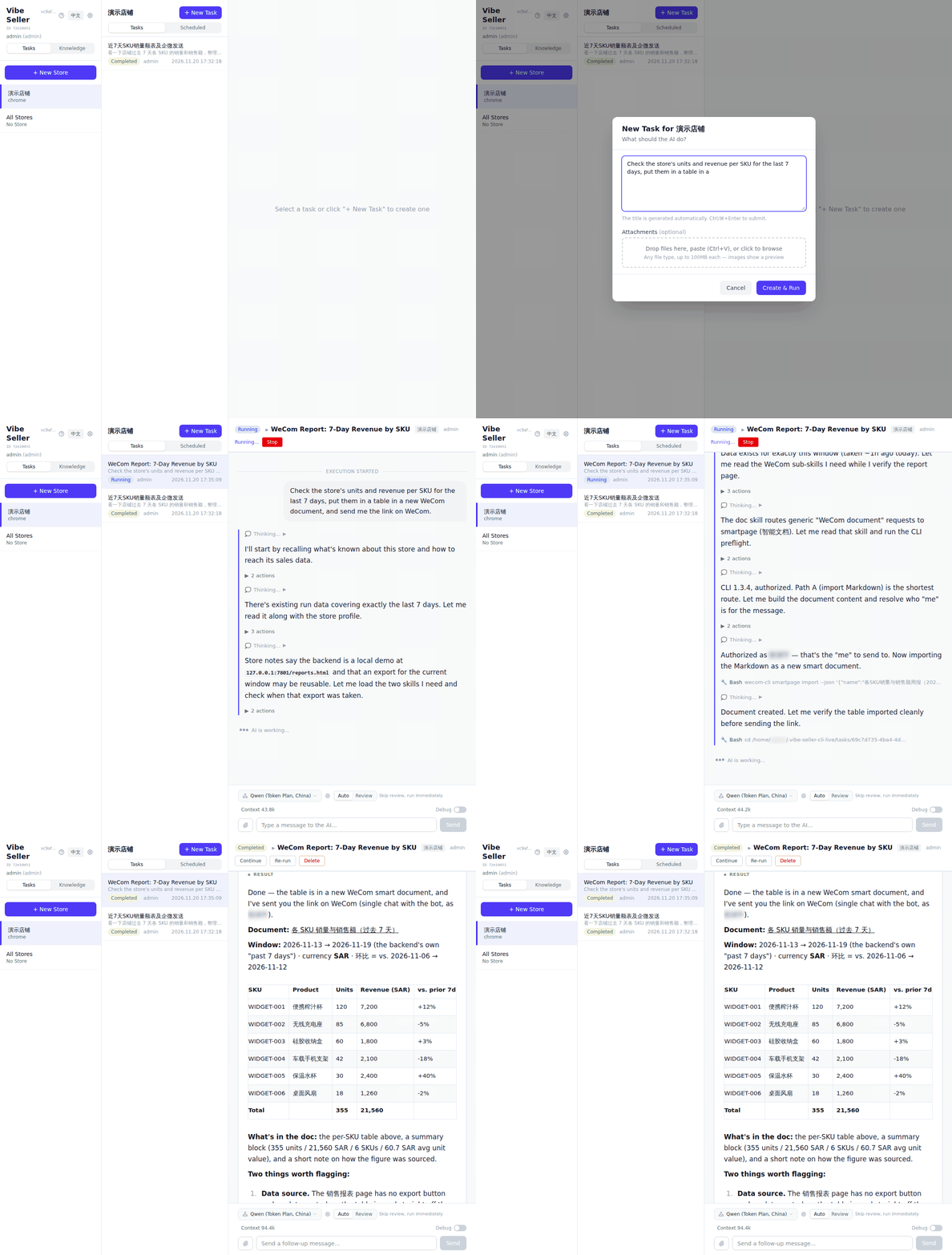
In the demo store, create a task: "Check the store's units and revenue per SKU for the last 7 days, put them in a table in a new WeCom document, and send me the link on WeCom." The AI reads the store's back office, creates the WeCom document and sends the link to your WeCom (a fake back office with demo data; waits are sped up):
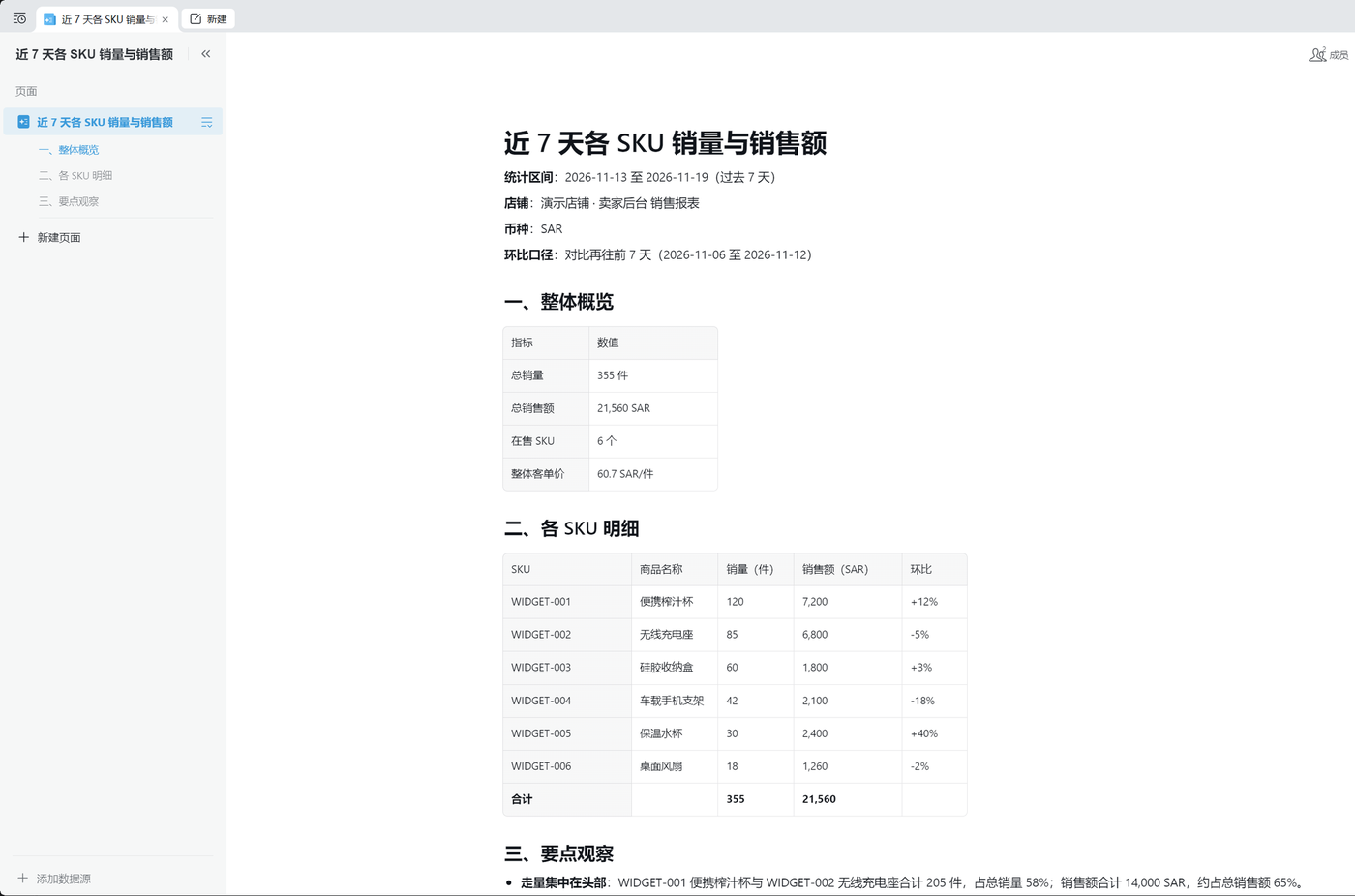
Open the link the AI sends you in WeCom, and this is the document it made:
Connect
Only Vibe Seller admins can connect, sign in again and disable.
-
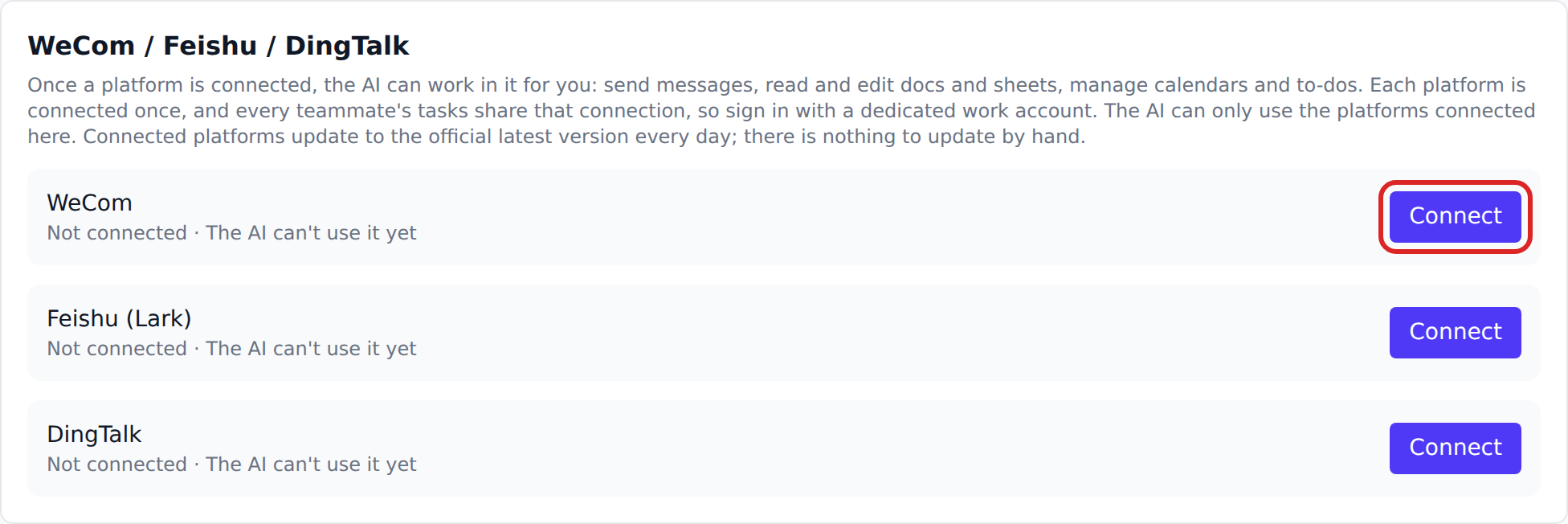
Open Settings → Integrations, find WeCom / Feishu / DingTalk and click Connect on the platform's row:
-
Vibe Seller downloads the platform's latest official program (4–25 MB), checks the file is complete and runs on this computer, then shows the sign-in steps on that row. Each platform signs in differently; follow its page:
- WeCom: scan with the WeCom app and create a smart bot. See WeCom.
- Feishu: two steps — create a Feishu app (once), then authorize with your Feishu account. See Feishu.
- DingTalk: open the link, pick your organization and authorize. The first time, an admin of your DingTalk organization has to allow it in the DingTalk console. See DingTalk.
-
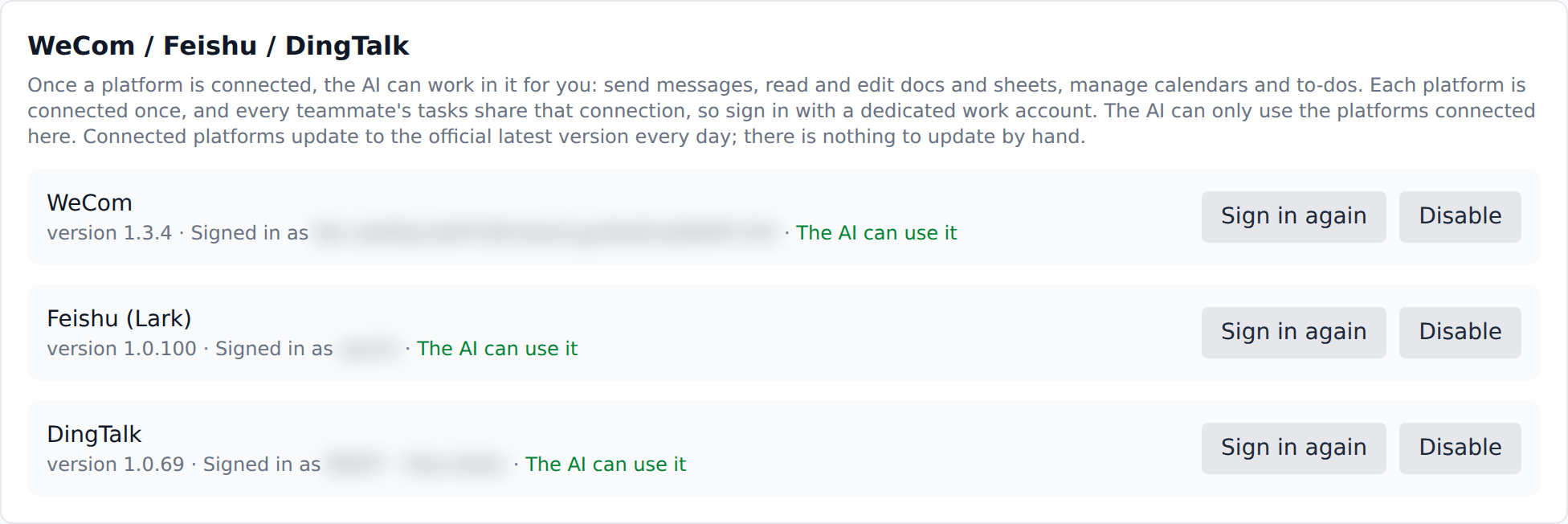
Once signed in, the row shows "Signed in. Finishing the setup…", then "The AI can use it" a few seconds later. Done:
You can close the page during sign-in — Vibe Seller finishes the setup when the sign-in completes.
Whose identity
- Each platform is connected once on this Vibe Seller, and every teammate's tasks use that connection: Feishu and DingTalk use the account that authorized; WeCom uses the bot created when scanning, acting on the scanner's behalf.
- Whoever scans or authorizes is the account this Vibe Seller uses. Use a dedicated work account, not the owner's personal account.
- The sign-in is stored only in Vibe Seller's own data directory; it never reads or changes a copy you installed yourself on this computer.
Who the AI can message
The platforms differ. This is what we saw when testing:
| Platform | Messages are sent as | Who it can message directly |
|---|---|---|
| WeCom | The bot created when scanning | The person who scanned, and people and groups that talked with the bot recently. To have the AI message a colleague, ask them to send the bot one message first; to post in a group, add the bot to it and @-mention it once |
| Feishu | The authorized account, or the Feishu app (bot) | Messaging someone as you needs the app's "send messages as user" permission; without it, messages go as the app, into the app's chat with you |
| DingTalk | The authorized account | People found in your DingTalk organization's contacts (by name); people outside it, not in the contacts, can't be messaged |
Enable only what you need
The three platforms are independent: connect one, two or all three. The AI sees only enabled platforms; for one that is not connected or was disabled, the AI neither knows how to use it nor can find its program.
Updates, signing in again, disabling
- Updates: nothing to do. Vibe Seller checks for the official latest version once a day, downloads it, and updates the official skills the AI uses with it. Running tasks keep the old version; new tasks use the new one. If a download fails, the current version stays and it tries again the next day. A platform that was never connected is never downloaded.
- Sign in again: switch accounts, or re-authorize after the sign-in expired. Only an enabled platform shows it.
- Disable: the AI stops using the platform immediately. The program and the sign-in are kept, so Connect later works without signing in again. Disabling deletes nothing on the platform.
Rules the AI follows
Vibe Seller adds a few rules to each platform's official skills; they win over the official text:
- The AI never signs in, signs out or updates these programs itself, and never installs other skills;
- If the sign-in is missing or expired, the AI stops and tells you to ask an admin to click Sign in again in Settings;
- If a permission is missing (signing in again does not help), the AI stops and tells you which permission, to be granted by that platform's admin;
- The AI sends messages or mail, invites people, or changes or deletes documents only when the task asks for it.
FAQ
How is a chat bot different from connecting WeCom / Feishu / DingTalk?
| Chat bot | Connecting WeCom / Feishu / DingTalk | |
|---|---|---|
| How you set it up | Paste the group bot's webhook URL — no sign-in, no authorization | An admin scans a QR code or opens a link and authorizes once |
| What the AI can do | Only post messages to the one group the bot is in (WeCom bots can also send files) | Work fully within the authorized account's permissions: read and write docs, sheets, calendars, to-dos and mail, and send messages |
| Can it read anything? | No, it only posts | Yes — what the authorized account can see |
| Good for | Pushing task results, daily reports and reminders into a fixed group | Having the AI actually work on the platform: write docs, tidy sheets, schedule events, message people |
Who it can message directly: see Who the AI can message. You can use both: for example, the AI writes a document in WeCom, then the chat bot posts its link to your operations group.
The download failed?
The Settings page says what to do next; open Details to see why each address failed. Vibe Seller tries the official address first, then mirrors in China, and picks whichever proxy or direct connection works. The addresses each platform uses:
| Platform | Version and program | Official skills |
|---|---|---|
| WeCom | registry.npmjs.org, mirror registry.npmmirror.com |
GitHub only (codeload.github.com), no mirror |
| Feishu | Version: registry.npmjs.org, mirror registry.npmmirror.com; program: github.com, mirror registry.npmmirror.com |
GitHub (codeload.github.com), then Feishu's own open.feishu.cn |
| DingTalk | Version: registry.npmjs.org, then api.github.com, gitee.com; program: github.com, mirror gitee.com |
github.com, mirror gitee.com |
Make sure this computer can reach at least one address in each cell, then try again.
I already installed and signed in to the official program on my computer. Do I sign in again?
Yes. Vibe Seller uses its own download with its own sign-in, separate from yours. That way, switching organizations on your personal account does not change what the team's tasks use.