Add a Custom MCP Server
Many data services offer MCP (a common way for an AI to call outside tools): keyword and competitor data, category research, translation, your own internal systems… Add such a service as a custom MCP server and every task in Vibe Seller can call its tools. With Xiyou Insight (西柚洞察) added, for example, you just say "use Xiyou to look up last week's search volume for yoga mat in the US" and the AI calls Xiyou's keyword tool to fetch it.
Two directions — don't mix them up
Vibe Seller works with MCP in two directions, set up in different places:
| Add a custom MCP server (this page) | MCP setup | |
|---|---|---|
| Who calls whom | Vibe Seller's tasks call an outside service | An outside AI tool calls Vibe Seller |
| Example | A task pulls keyword data from Xiyou Insight | Codex asks Vibe Seller to create a task |
| Where to set it up | Settings → Integrations → Custom MCP servers | Settings → Integrations → API Key, then in the outside tool |
| What you need | The service's MCP config (with its token) | A Vibe Seller API key (starts with vst_) |
In one line: to give Vibe Seller a new ability, add a custom MCP server; to drive Vibe Seller from another AI tool, see MCP setup.
Example: Xiyou Insight
Step 1: Copy the MCP config from the service
Sign in to the Xiyou Insight platform and open Console → MCP credentials (MCP 凭证管理). Create an MCP token if you have none, then click 复制配置 (copy config) on its row:
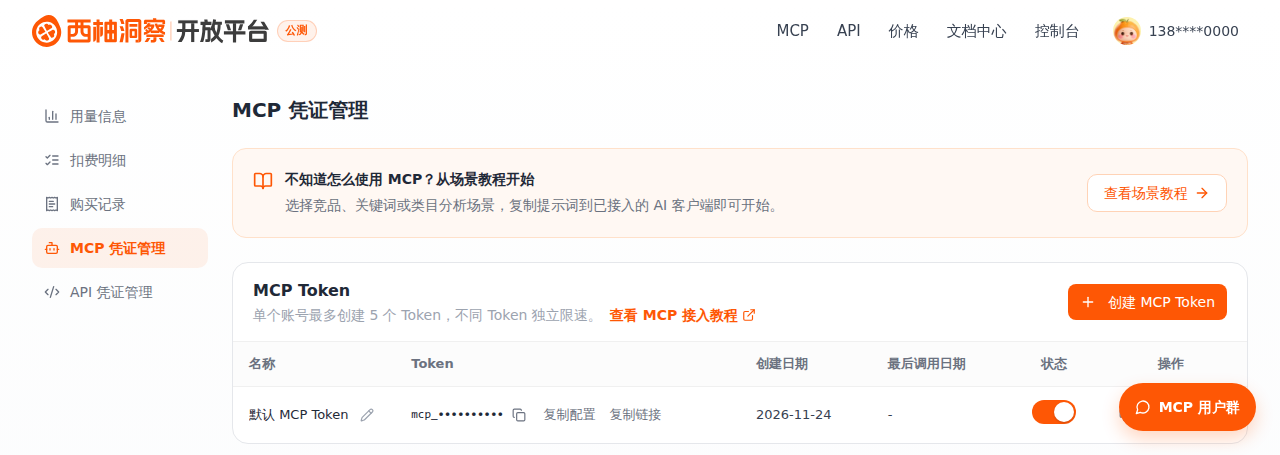
What you copy is a block of JSON like:
{
  "mcpServers": {
    "xydc-mcp": {
      "url": "https://mcp.xydc.com/mcp",
      "headers": { "Authorization": "Bearer <your MCP token>" }
    }
  }
}
Other services work the same way: look for an "MCP setup", "MCP config"
or "Claude Code config" page and copy the {"mcpServers": …} block.
Step 2: Paste it into Vibe Seller
In Vibe Seller open Settings → Integrations, scroll to the Custom MCP servers card at the bottom and click Add MCP:

Paste what you copied and click Save:
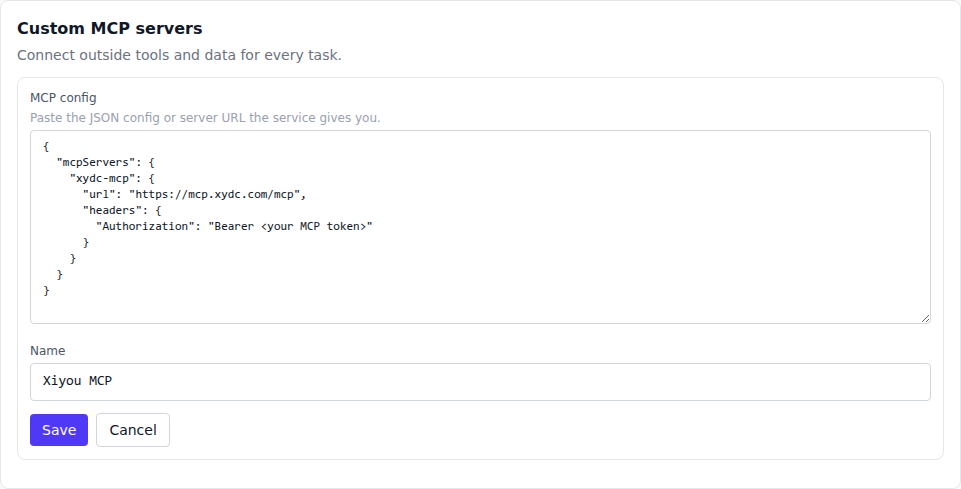
- A whole "install this MCP for me, here is my token {…}" blurb is fine — the text around the JSON is ignored.
- Give it a name you'll recognise, e.g. "Xiyou MCP". Later, say "use Xiyou MCP…" in a task and the AI knows which tools you mean.
- Pasting just the URL (Xiyou's 复制链接) works too.
Step 3: Saving checks the connection
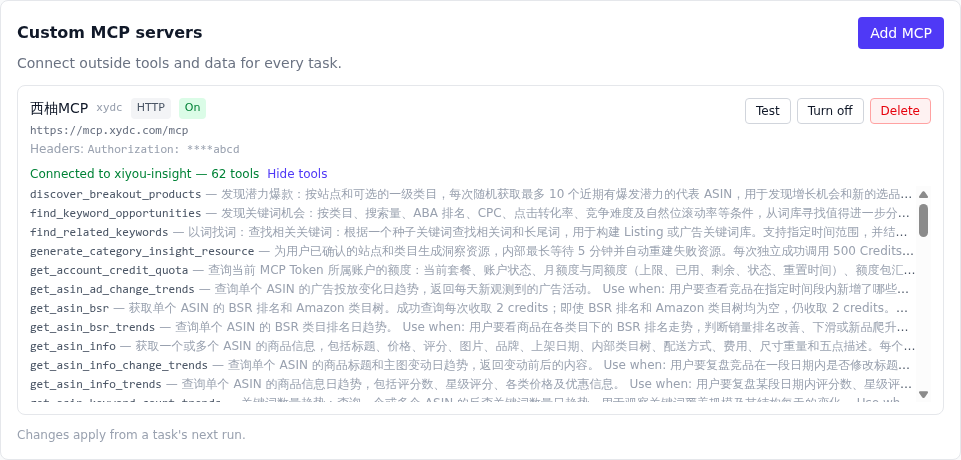
Save connects to the service first. It is saved only if it connects, and then shows "Connected to xiyou-insight — 62 tools"; if it can't connect you see why and nothing is saved. Show tools lists everything the service offers:
Step 4: Use it in a task
Just say so when you create a task:
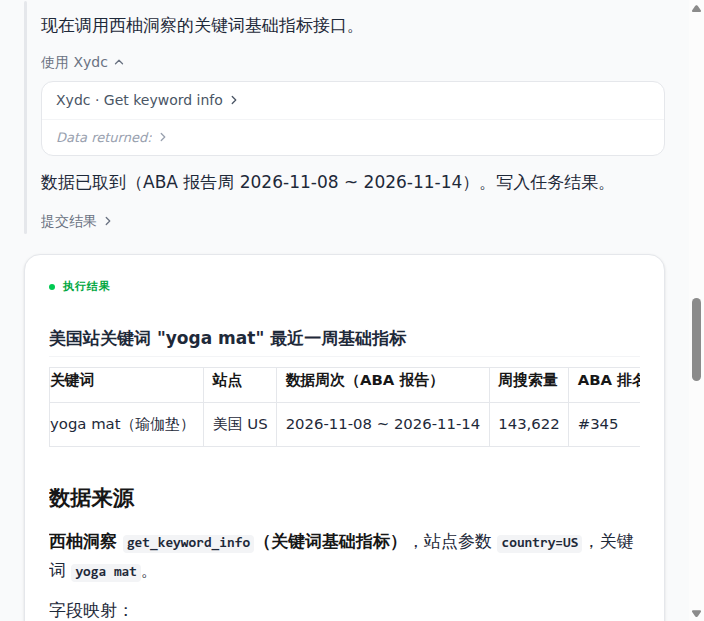
Use Xiyou Insight to look up last week's search volume, ABA rank and suggested bid (CPC) for the keyword yoga mat in the US, put them in a small table, and say which Xiyou tool the data came from.
While it runs, the conversation shows a "Used Xydc" step; open it to see which of its tools ran (here, Get keyword info):
Good to know
- Only an admin can add, turn off or delete servers.
- Once added, every user's tasks can use it, scheduled ones included; changes apply from a task's next run.
- Turn off a server to pause it — no need to delete it.
- Only add services you trust: when a task calls one of its tools, what the call carries (keywords, say) goes to that service and is billed by its rules.
FAQ
Saving says "the token is wrong or no longer valid"
The token is mistyped, deleted or switched off. Check it in the service's console, copy the config again and paste it.
It says a header still has the sample text
You pasted the sample from the service's docs, with its "your token here" text still in place. Copy the config with your real token from the service's console.
It says the service needs an OAuth sign-in
Tasks run on their own, so nobody is there to authorize. Use the token / API key option the service offers instead.
It says the config has a ${…} variable
Replace the ${…} with the real token and save again.
Changing the token
Copy the config from the service again, click Add MCP and paste it; when asked about the existing name, choose to replace.
A task doesn't use it
Name it in the task with the name you gave it ("use Xiyou MCP…").